Teamplify + Microsoft Teams
Connecting your Microsoft Teams workspace enables Smart Virtual Standups, integrates Time Off management, and enhances Team Analytics with Microsoft Teams data. It also allows you to use Microsoft Teams as a Single Sign-On provider.
Virtual Standups in Microsoft Teams
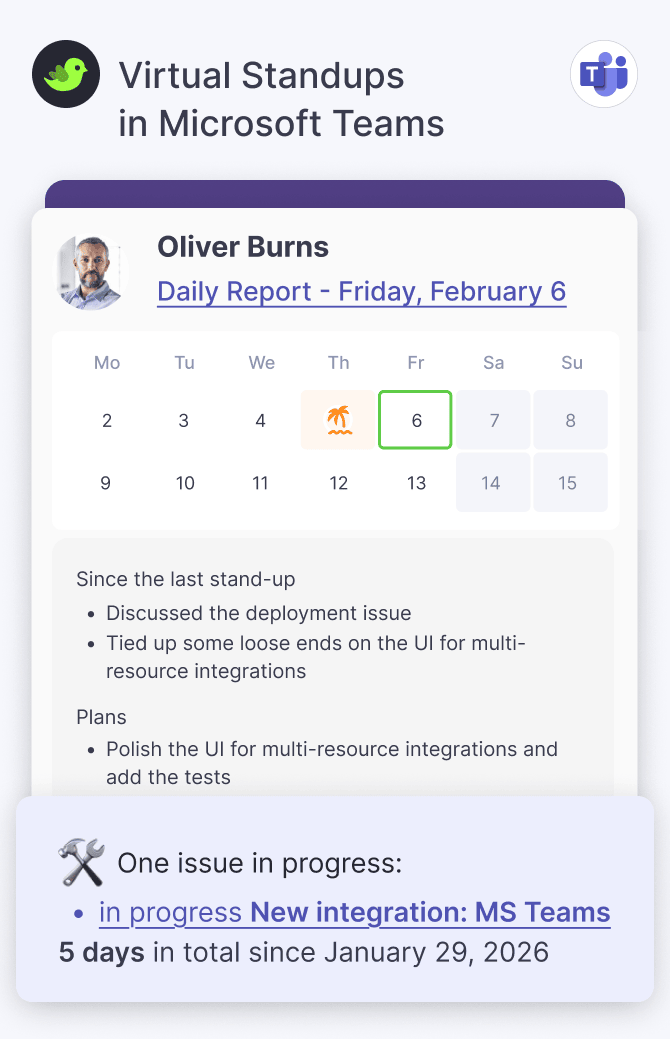
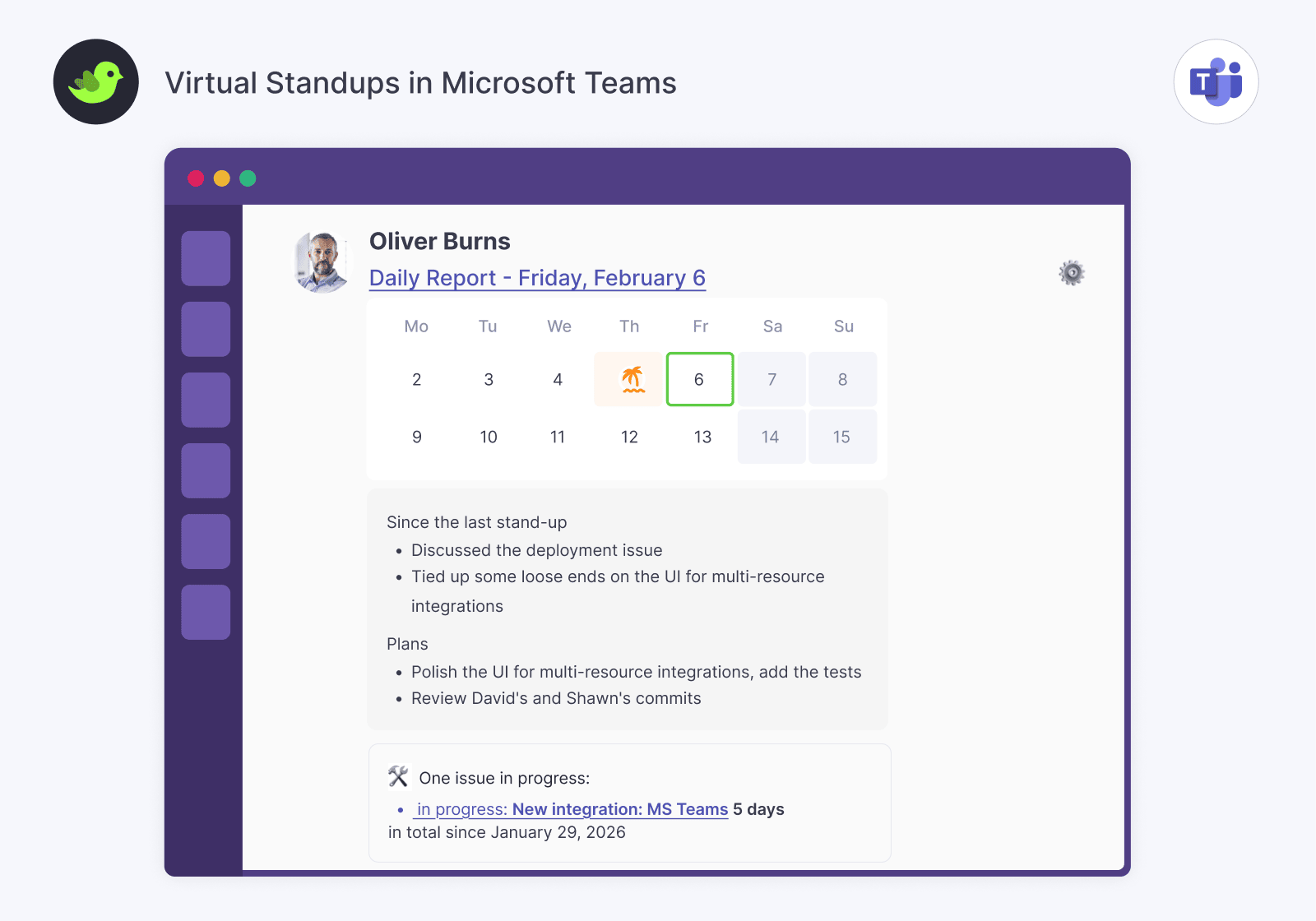
Save time on meetings by running Smart Virtual Standups directly in Microsoft Teams. These standups are fully configurable and integrated with Time Off, Team Workflows, and Time Tracking:
- Standups can automatically perform Team Workflow checks — for example, reminding teammates to mark their tasks as "in progress" in Jira or alerting developers who haven't pushed their code for too long.
- Standup reports include the current task each teammate is working on and how long it has been in progress, thanks to the automated Time Tracking feature.
- Every team can set its own standup schedule, format, and Microsoft Teams channel.
Time Off
Teamplify has a built-in time off management system that integrates seamlessly with Microsoft Teams and all other Teamplify features. You can:
- Set up notifications for vacations, sick days, and national holidays that are sent to your team’s Microsoft Teams channel.
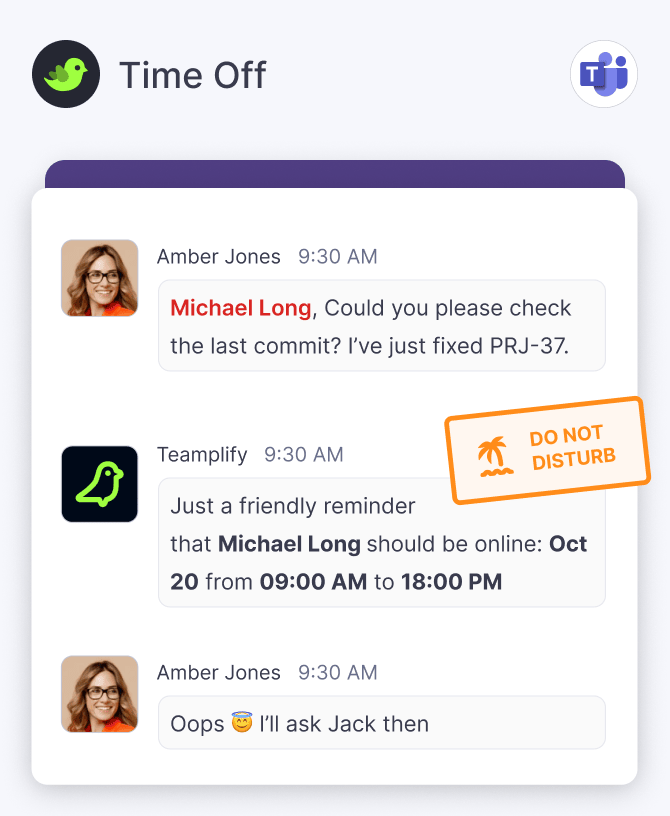
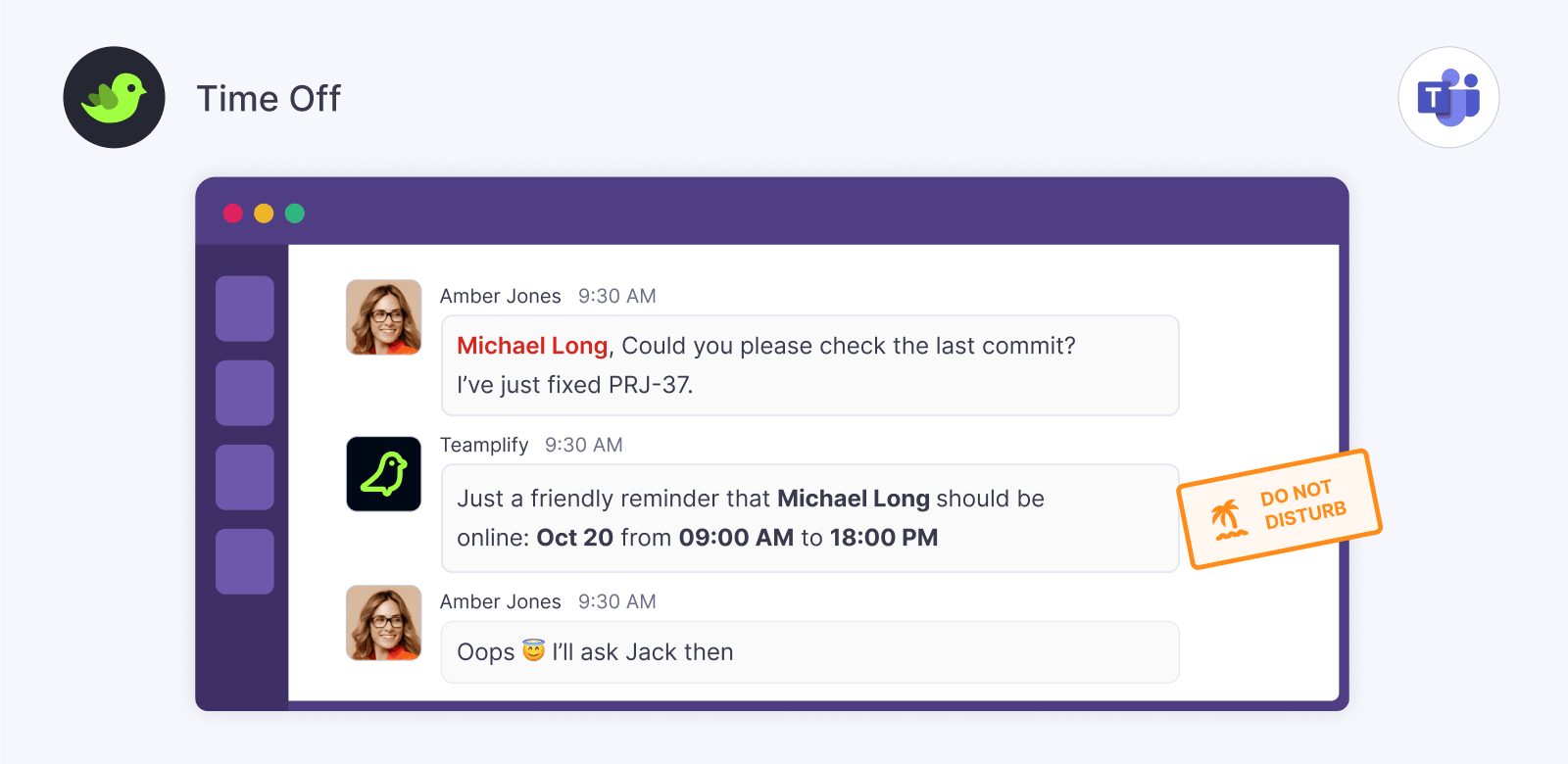
- Enable automated bot responses in Microsoft Teams when someone mentions a teammate who’s currently unavailable.
- See scheduled time off in Virtual Standup reports in Microsoft Teams and plan around vacations and holidays more effectively.
- Get a more accurate view of your team’s work in Team Analytics, with time off automatically factored in.
Team Analytics
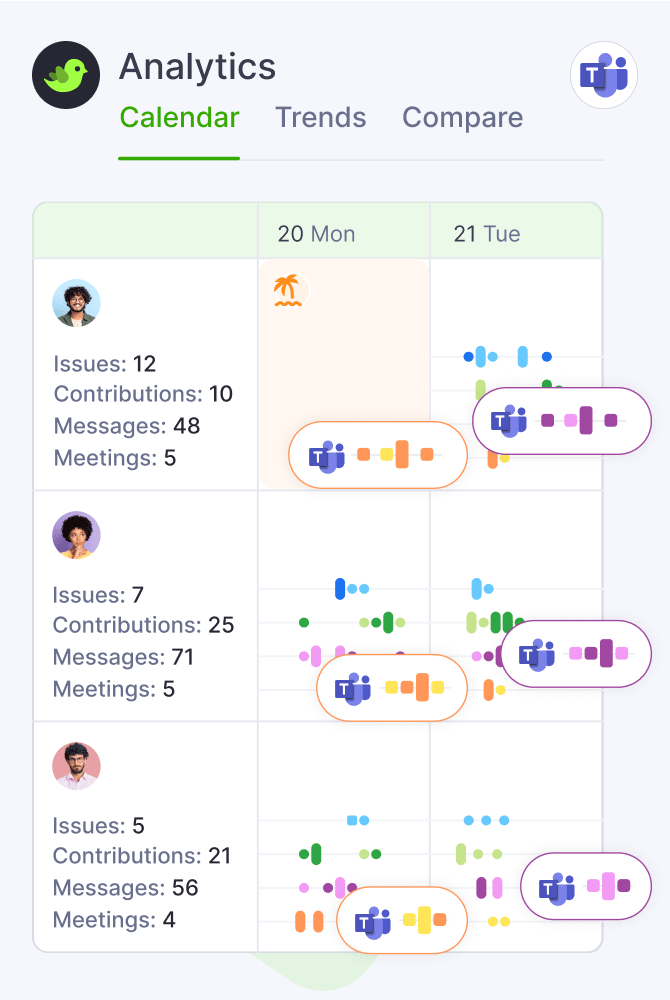
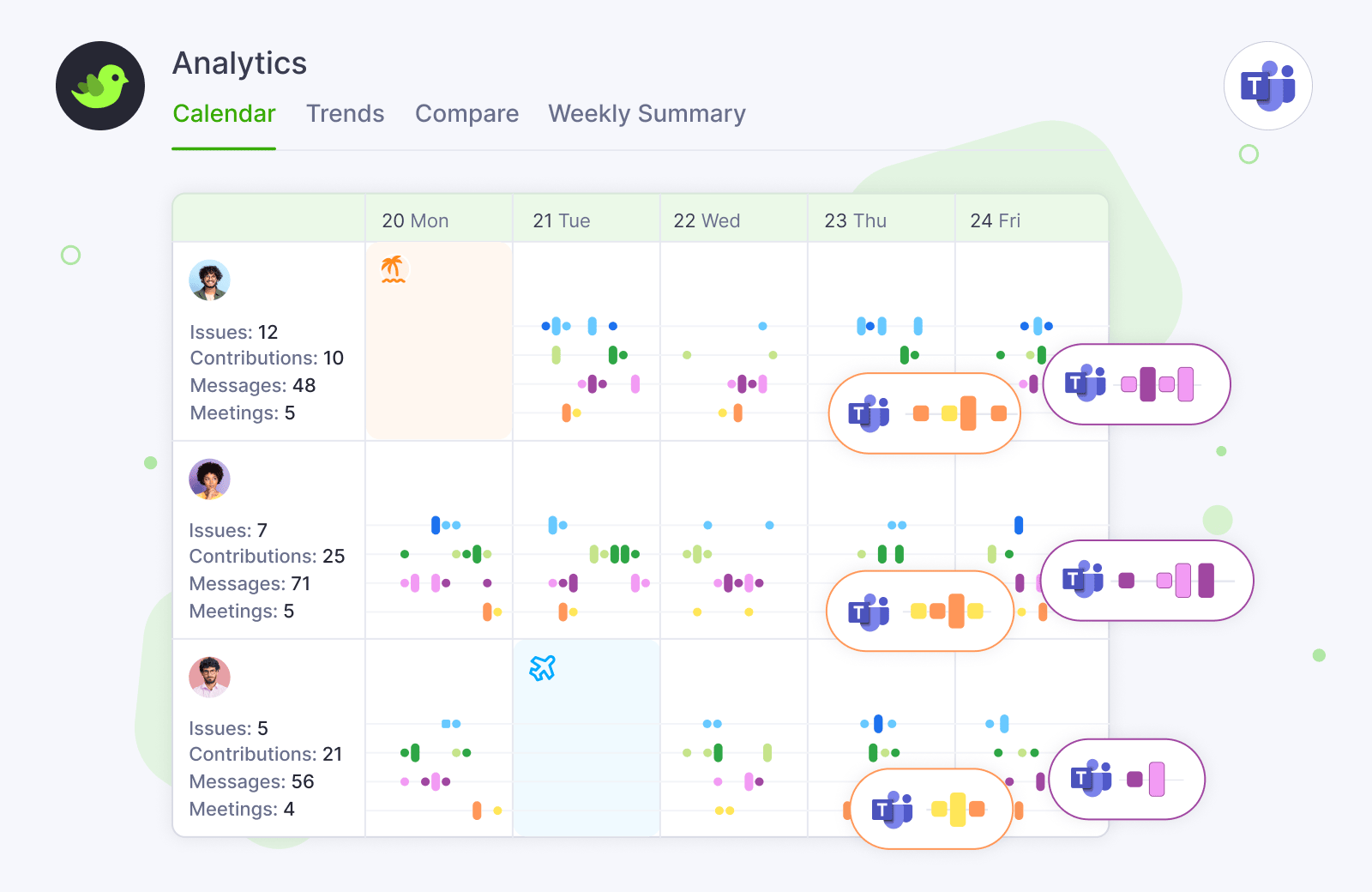
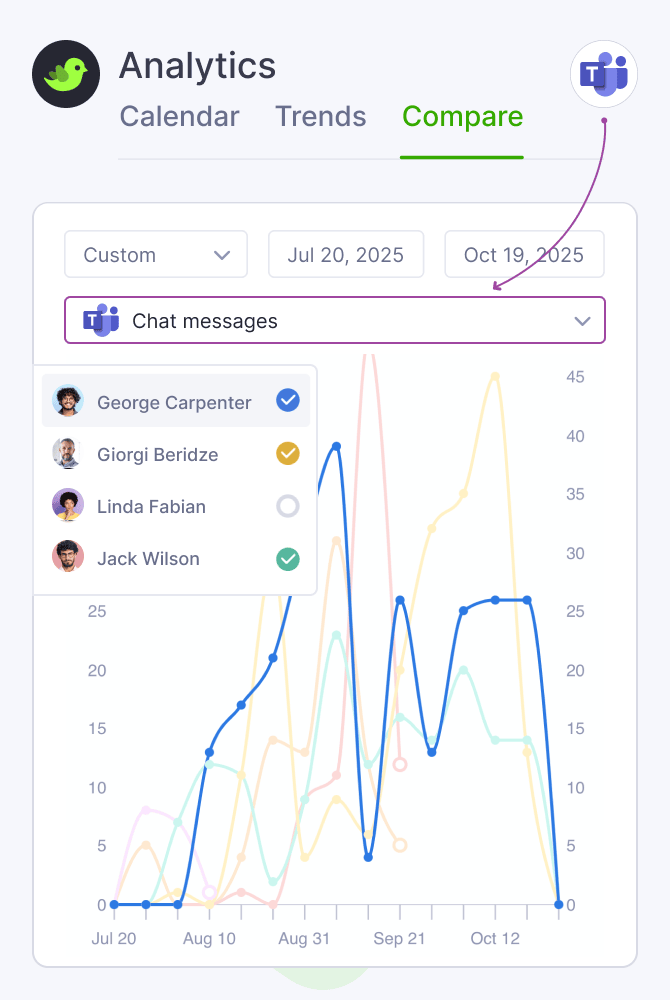
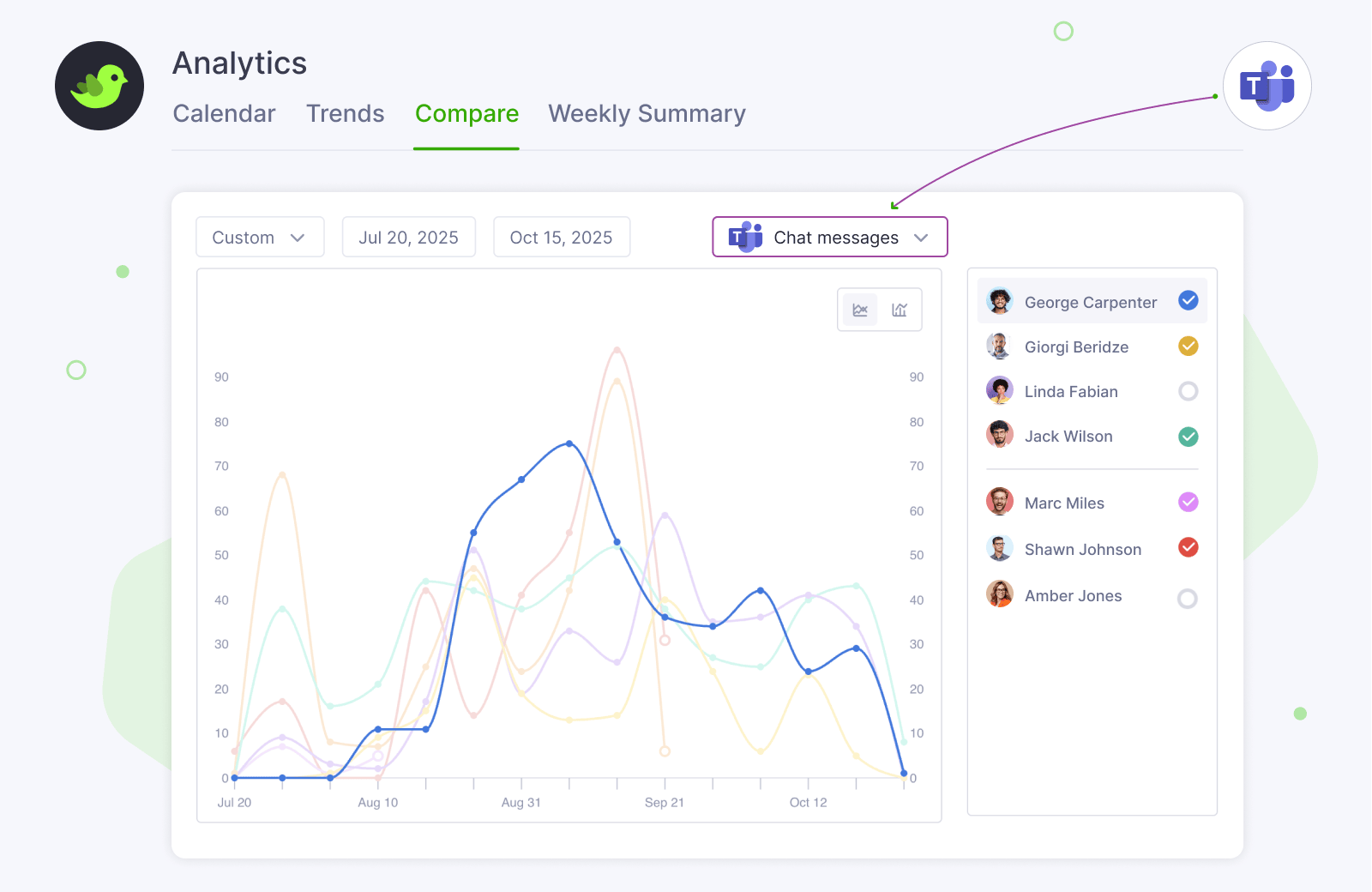
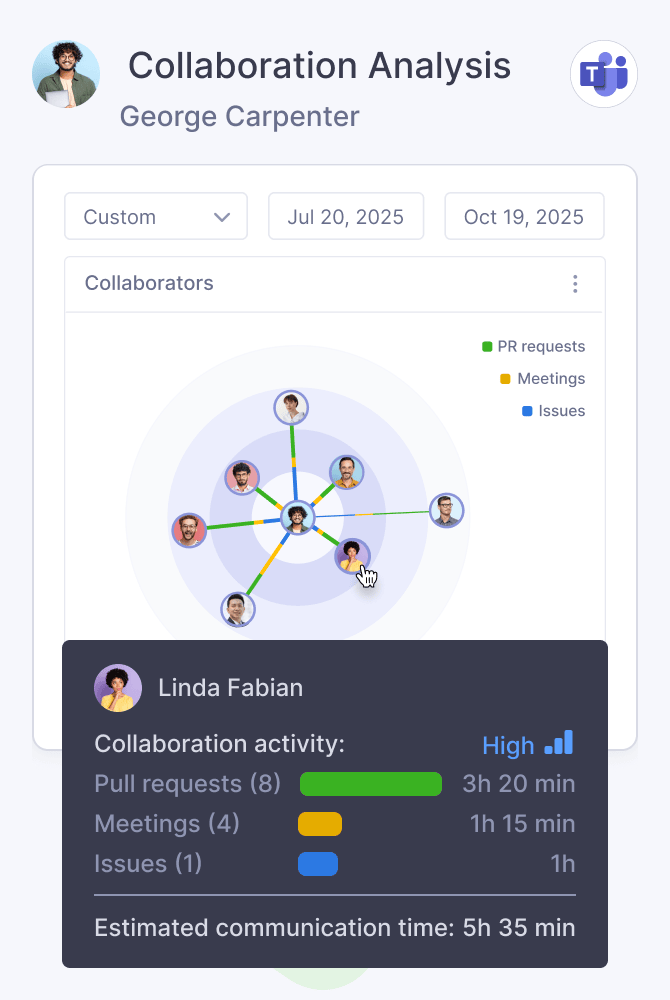
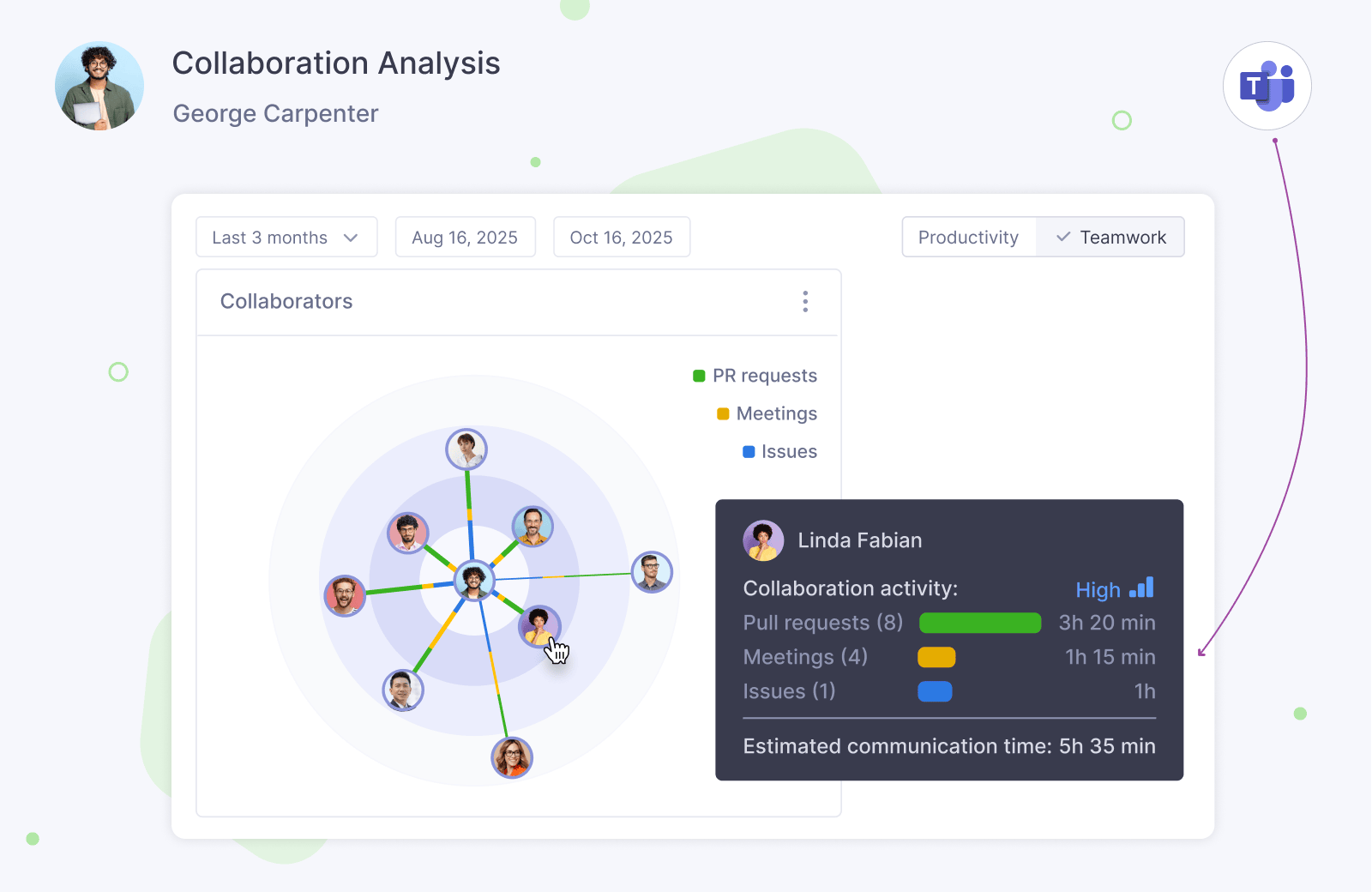
Teamplify integrates metadata from Microsoft Teams chats and meetings into Team Analytics, giving you a more complete picture of how your team is working.
Multiple chat platforms
With any Teamplify plan, you can connect as many integrations as you need. If you work across multiple Microsoft Teams tenants or use Microsoft Teams alongside other chat platforms such as Mattermost or Slack, you can connect them all to Teamplify and access its full range of features across every connected chat.
Data being analyzed
- Messages: channel, thread, timestamp, sender, mentions of issues from any task tracker connected to Teamplify in the message text
- Meetings: the channel in which meetings take place, participants, time when people join and leave the meeting
Please note that Teamplify only analyzes data from standard channels where it has been explicitly enabled, which requires two conditions:
- The Teamplify bot must be added to a team
- Channel syncing must be enabled in the Microsoft Teams integration settings in Teamplify.
Teamplify does not have access to private or shared conversations in Microsoft Teams and cannot analyze them.
How to connect Microsoft Teams to Teamplify
-
In your Teamplify workspace settings, go to Integrations and select the
Microsoft Teams integration. Here's a quick link:
- Follow the instructions on the screen. You'll be redirected to Microsoft Teams to authorize Teamplify to access your account.
- Open Microsoft Teams and install Teamplify from the Teams App Store.
- Add Teamplify to your Microsoft Teams channels where you want it to be active.
- On the Microsoft Teams integration page, click Accounts, and link your teammates' Microsoft Teams accounts with their Teamplify profiles. This step allows Teamplify to recognize them in Microsoft Teams, which is essential for all Microsoft Teams-related features to function properly. Alternatively, each team member can complete this setup directly in their own Teamplify profile.
 Connect Microsoft Teams
Uninstall
To disconnect your Microsoft Teams workspace from Teamplify, go to your Teamplify workspace Settings > Integrations, select the Microsoft Teams integration, and click Disconnect. All the data that Teamplify has collected from your Microsoft Teams workspace will be automatically deleted within 48 hours.
Contact support
If you have any questions or need assistance with the Microsoft Teams integration or any other Teamplify feature, please don’t hesitate to contact us.
