How to set up a standup?
Connect your chat
Before configuring a standup, make sure the chat integration is connected in Settings → Integrations — this is required for delivering reports to a channel. Personal reminders are sent via direct message in the team messenger if the member has their account connected, or by email otherwise.
Locate standups settings
Organization-wide vs. team-level
Standups can be configured at the organization level or for individual teams, including sub-teams. Each configuration is fully independent and does not inherit settings from the organization or parent team — each can have its own schedule, channels, and template. Organization-level standups can only be configured by organization admins; team-level standups can also be managed by team supervisors.
To configure standups at the required level, open the Standups page and click Standup settings.
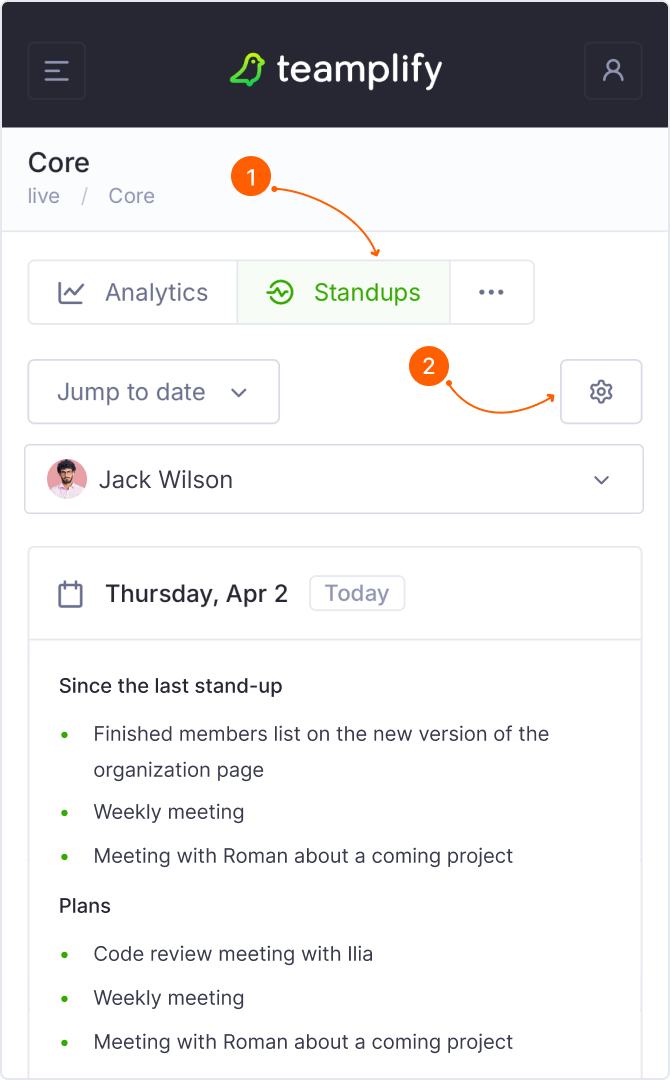
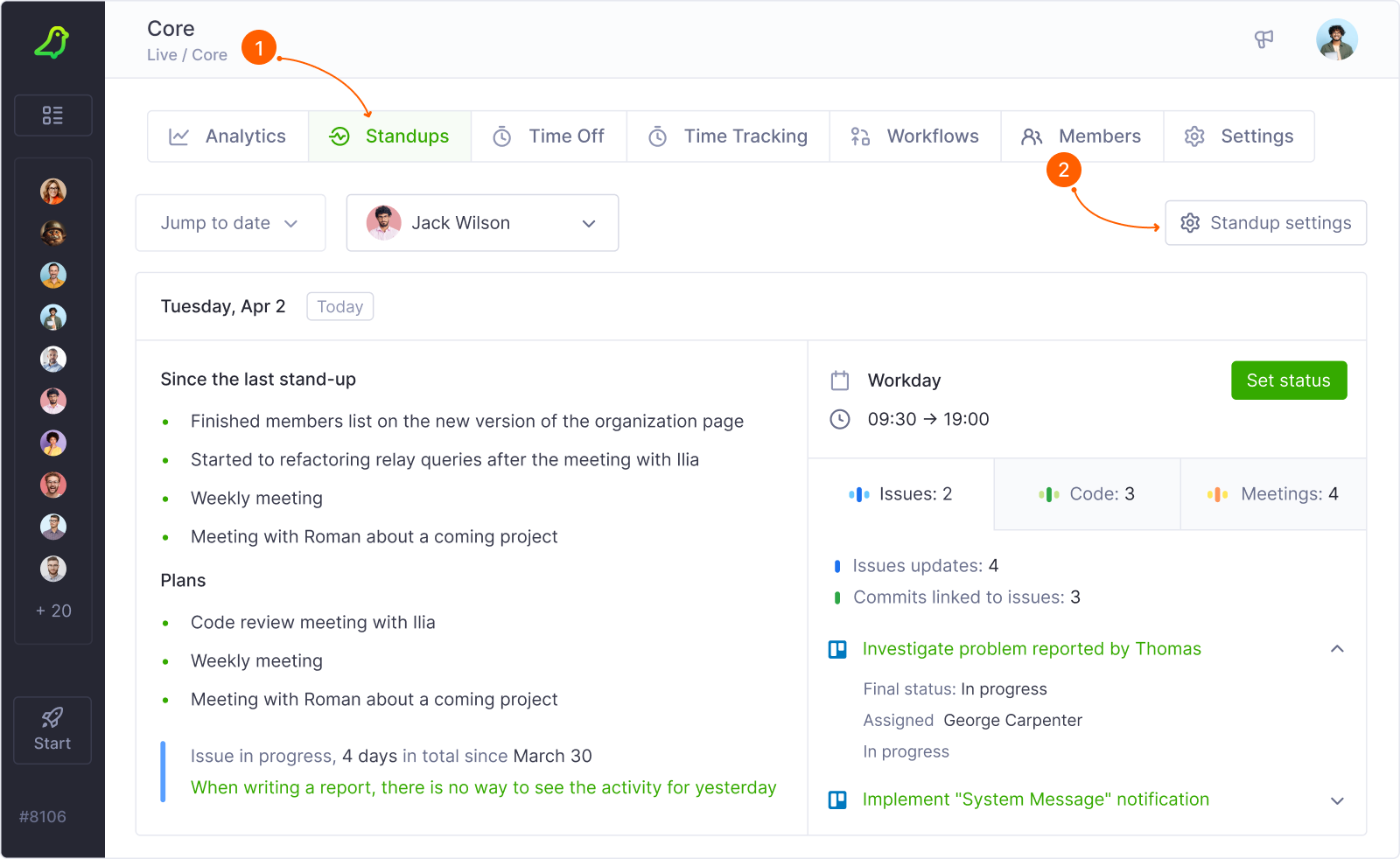
Each level has its own settings — so different teams can run standups on their own schedule, deliver reports to their own channels, and use a template that fits their workflow.
What if standups are configured on multiple levels?
Regardless of how many configurations are active, each member writes a single report that is automatically delivered to all configured channels. If a member is covered by multiple active configurations, they receive only one reminder — the one that fires first.
Set the schedule
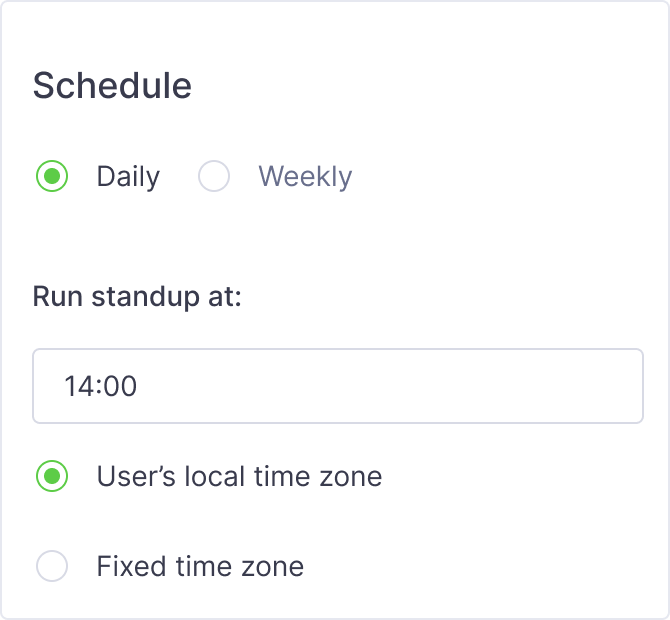
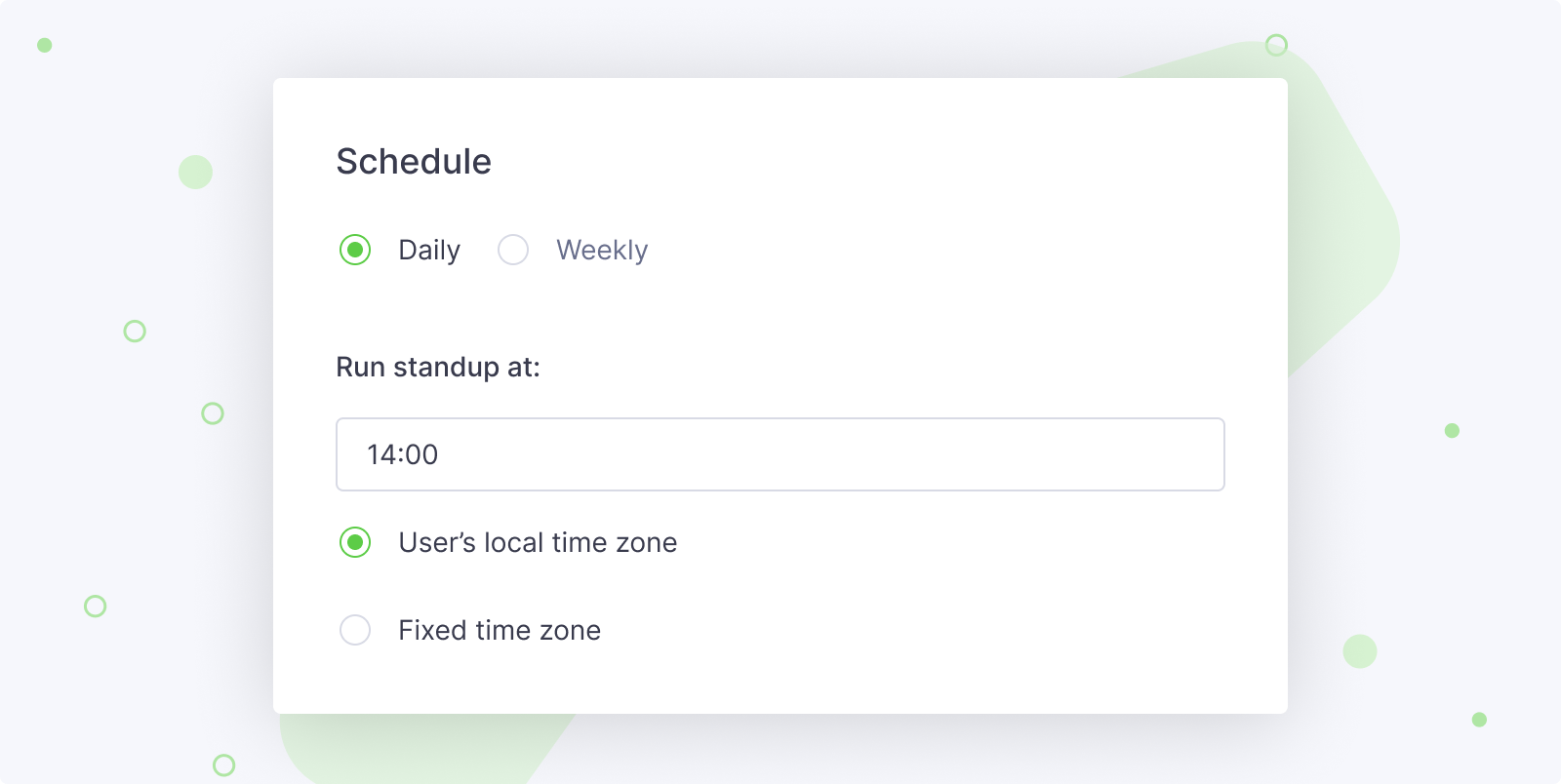
Choose Daily or Weekly depending on how often your team needs to sync. With a weekly cadence, members submit their updates by the end of the week, and the summary is published on Monday.
Set the time you want standups to run in Run standup at.
User's local time zone — each member submits their update by the configured time in their own time zone. A good fit for distributed teams that want to replace standup meetings entirely with async Standups.
Fixed time zone — all updates are collected by the same point in time for everyone. A good fit if the team holds regular standup meetings and wants all updates ready before it starts.
How to exclude members
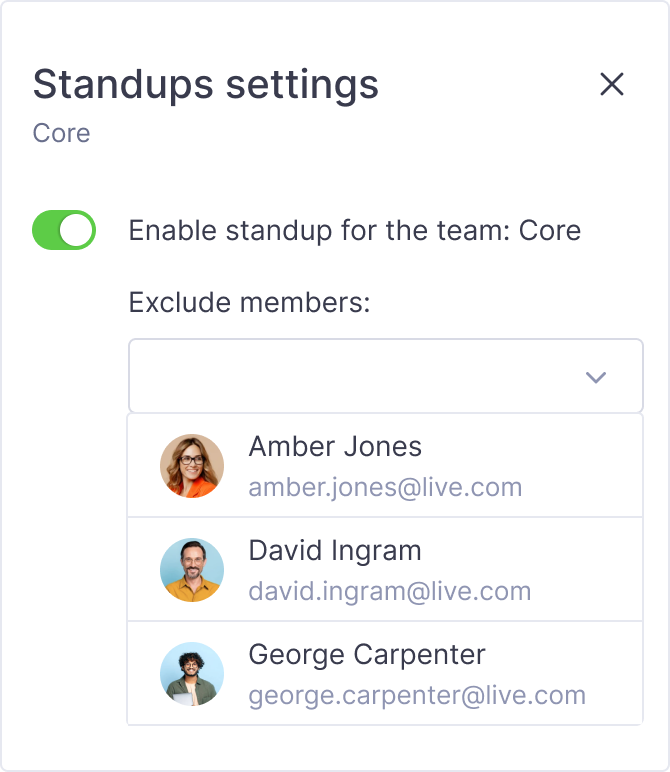
Some team members may not need to participate in standups — managers, for example, often prefer to follow the team's progress without participating themselves. Use Exclude members to exempt specific people from standup reminders and report requirements.
Define the report template
A shared template keeps updates consistent and easier to read.
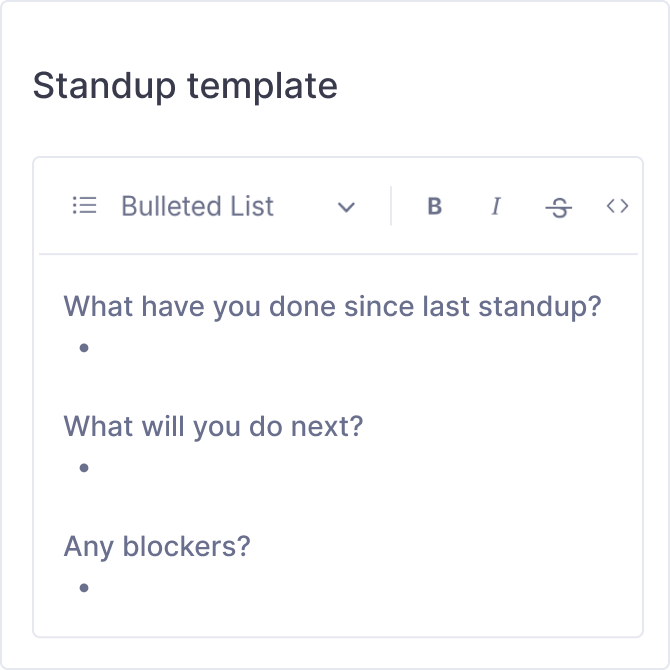
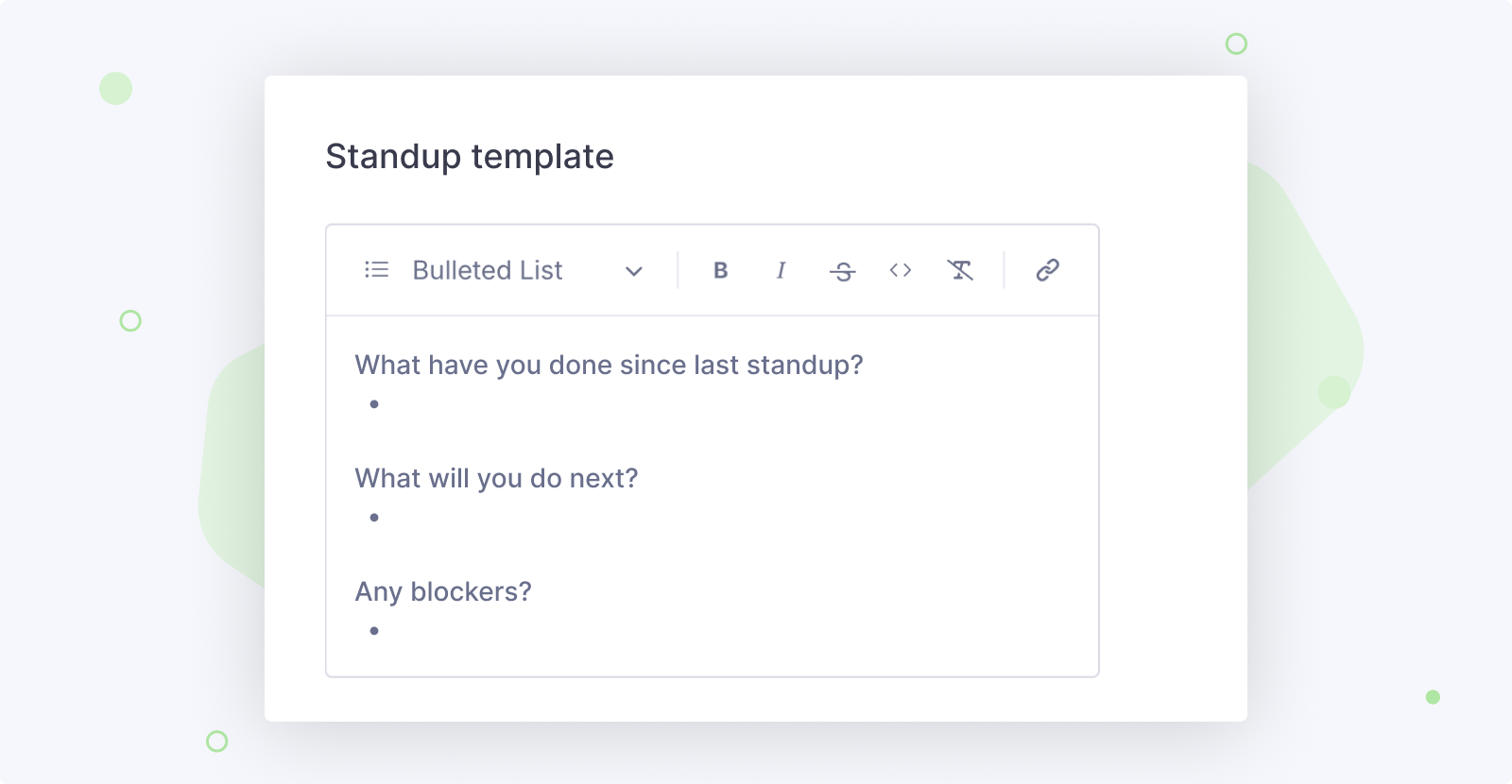
The default template includes three common sections: what's been done since the last standup, what's planned next, and any blockers. You can customize it to match your team's workflow — the editor supports basic text formatting.
Choose where and how reports are sent
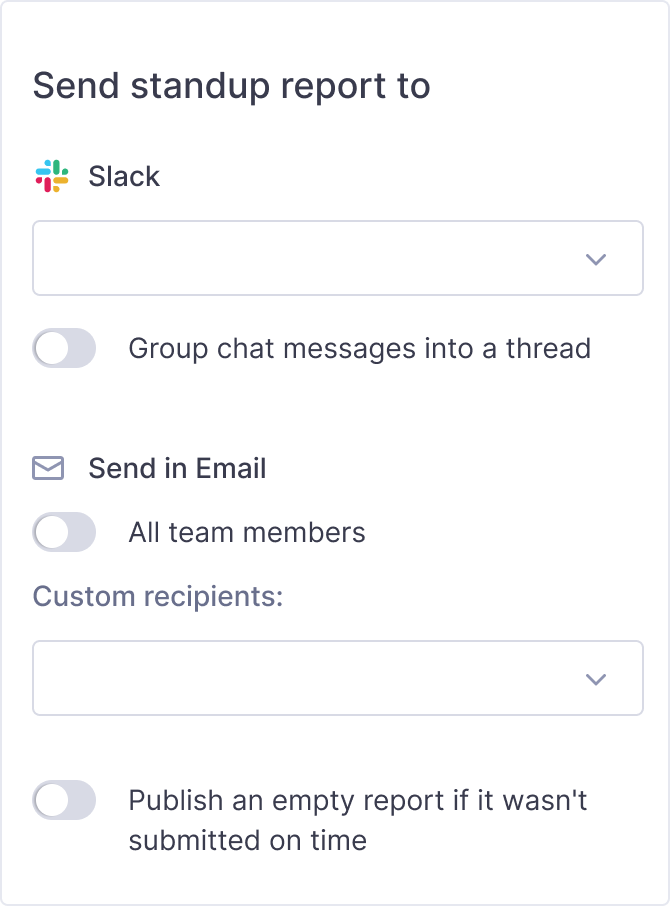
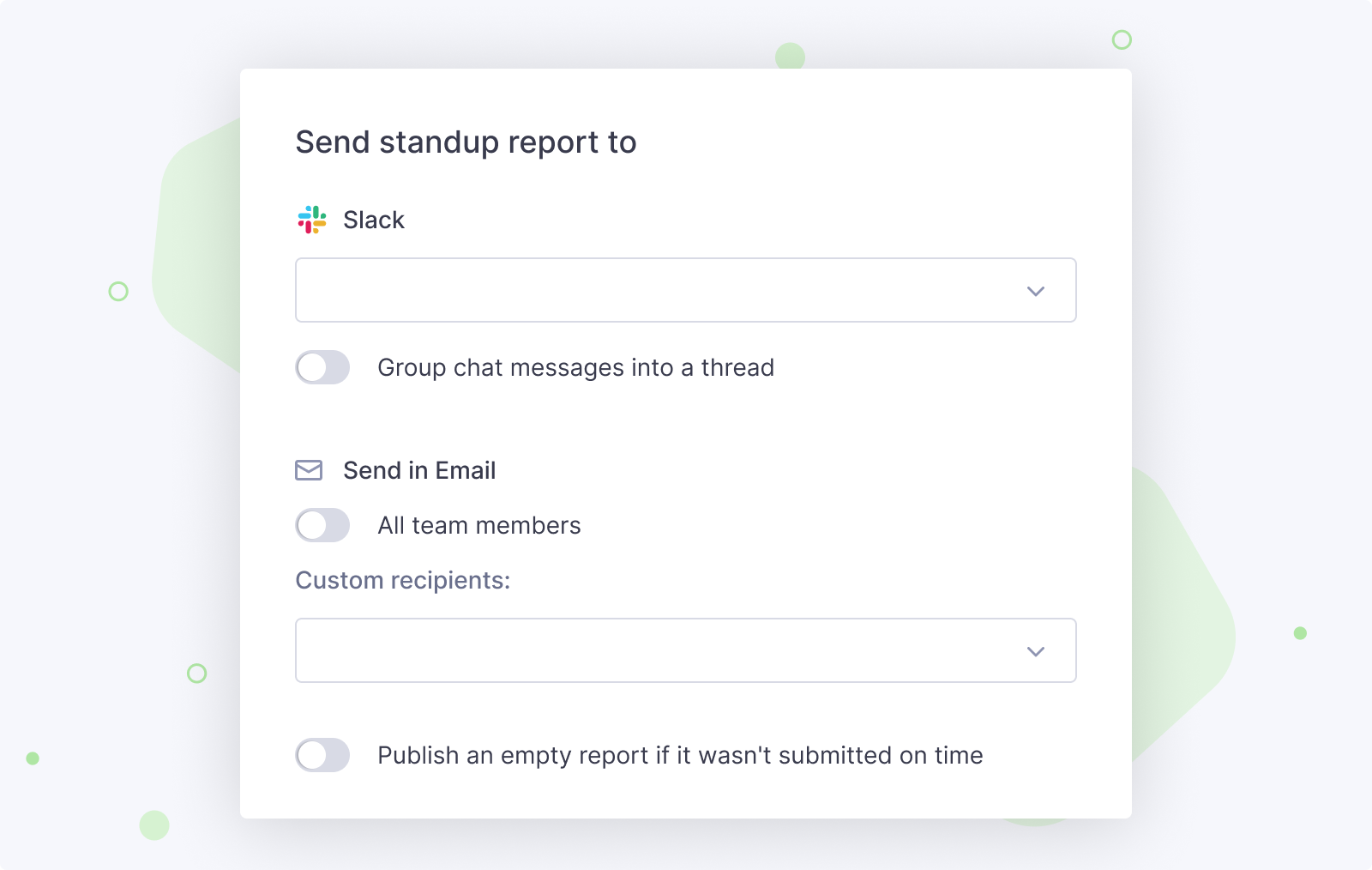
Standup reports are delivered to the channels you configure here. Select one or more channels from the connected chat integrations — Slack, Microsoft Teams and Mattermost. If a messenger is missing, connect it in the Integrations settings.
Group chat messages into a thread — if your team uses the channel for other conversations, grouping standup updates into a thread keeps the channel tidy and easier to follow.
Email recipients — use this if some team members don't use a messenger, or if you want to include people outside the team in the standup digest.
Publish an empty report if it wasn't submitted on time — makes it clear who hasn't submitted yet, so the standup summary always shows the full list of participants rather than silently skipping absent ones.
Configure notifications about upcoming standups
Reminders are sent automatically — no need for managers to follow up manually.
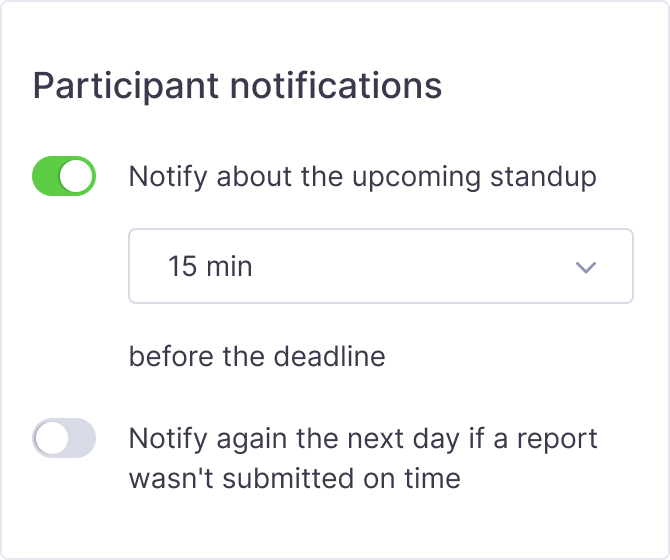
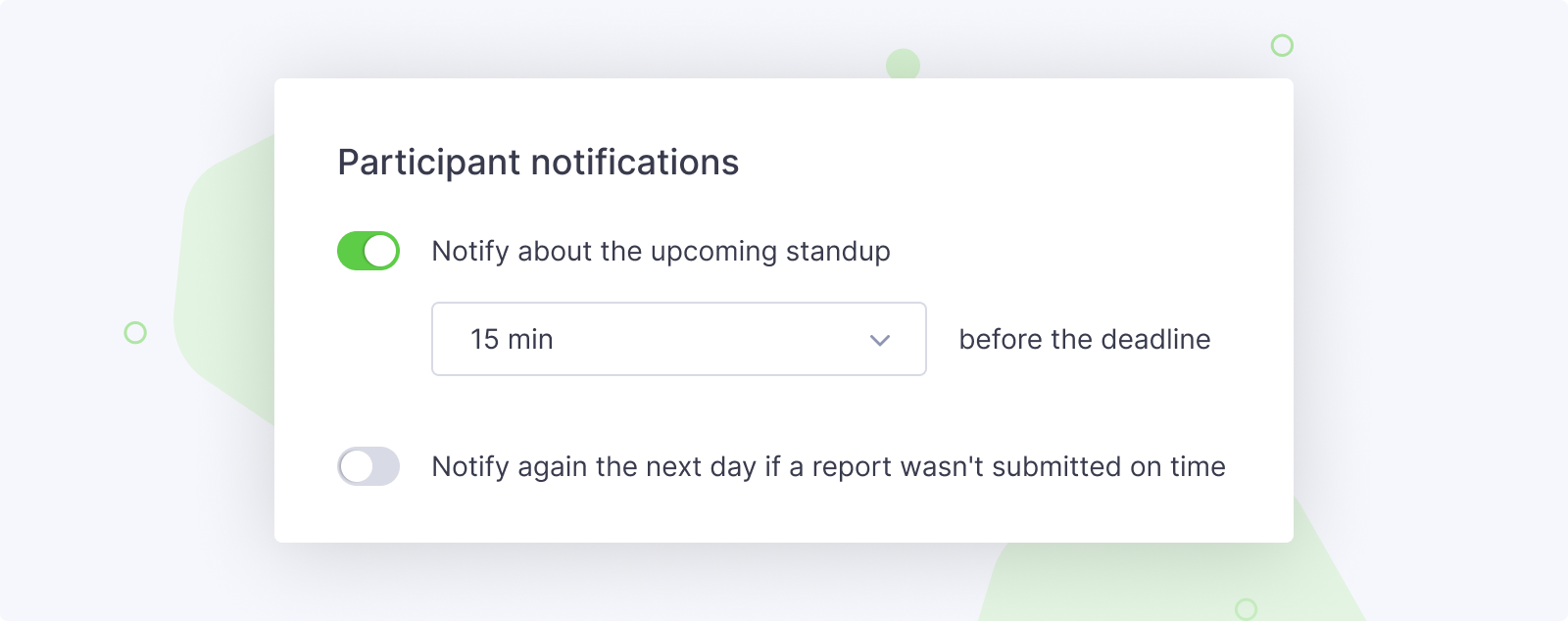
Notify about the upcoming standup — send a personal reminder to each member expected to submit a report. You can set how far in advance the reminder is sent — from a few minutes to several hours.
Notify again the next day if a report wasn't submitted on time — sends a follow-up to members who missed the deadline. Disabled by default.
Add smart checks to standups
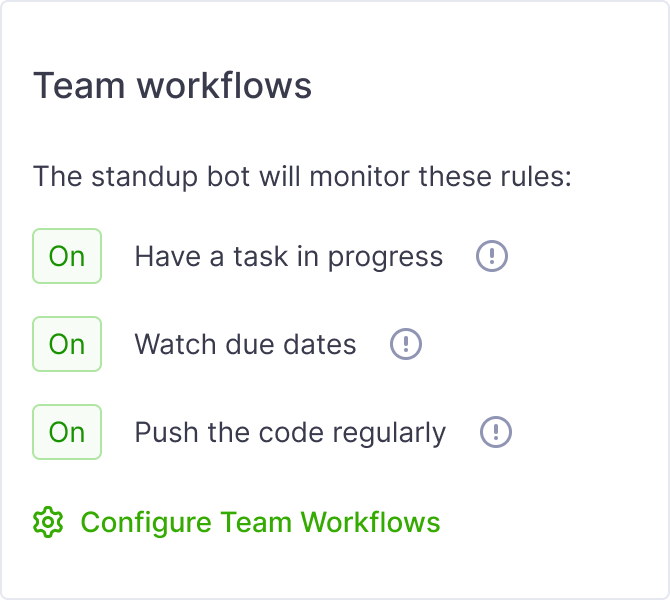
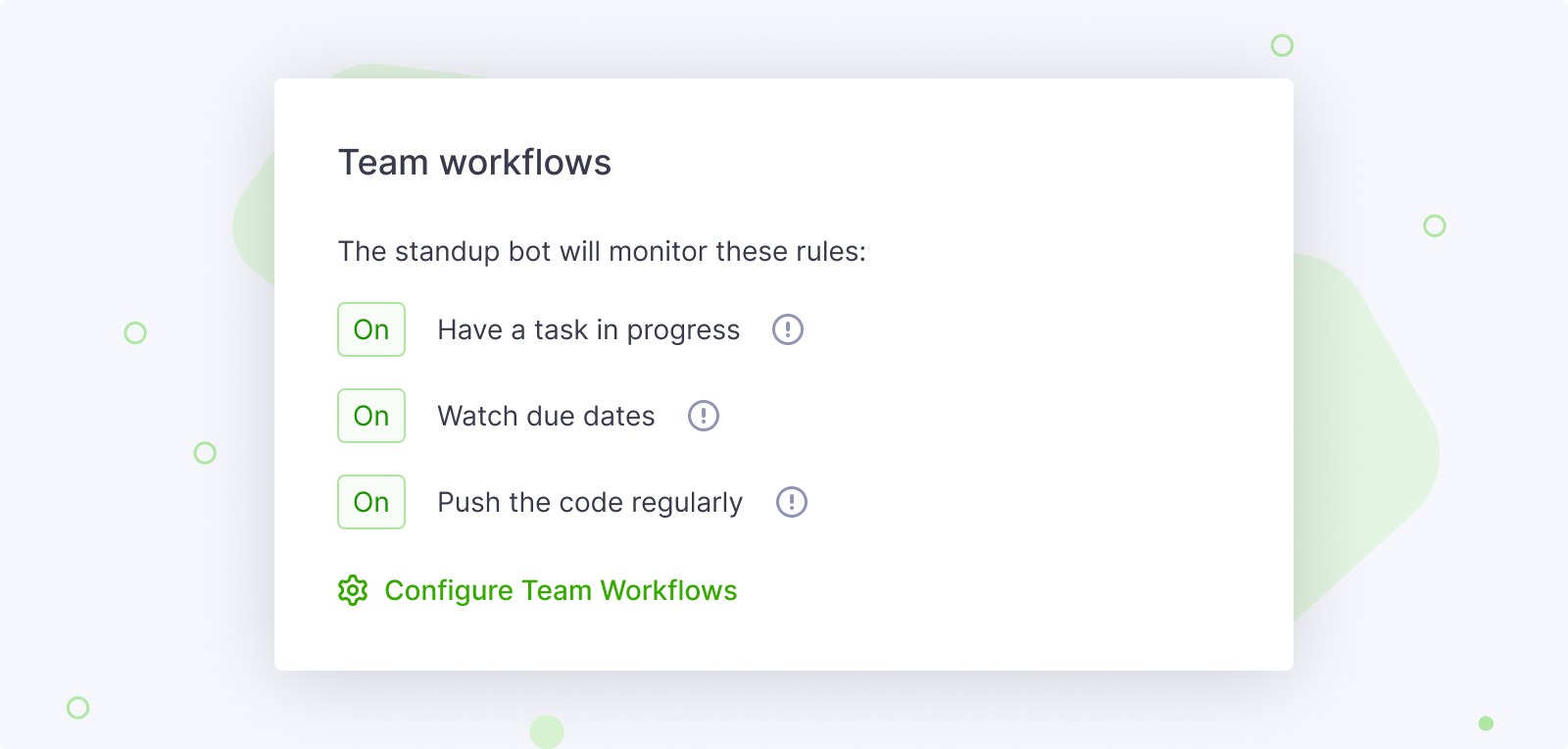
Connect Team Workflow rules to standups so that the Teamplify bot monitors compliance automatically and includes violation notifications directly in the published reports — whether someone hasn't pushed code in days, has a task stuck in progress, or is about to miss a due date.