Publishing a report
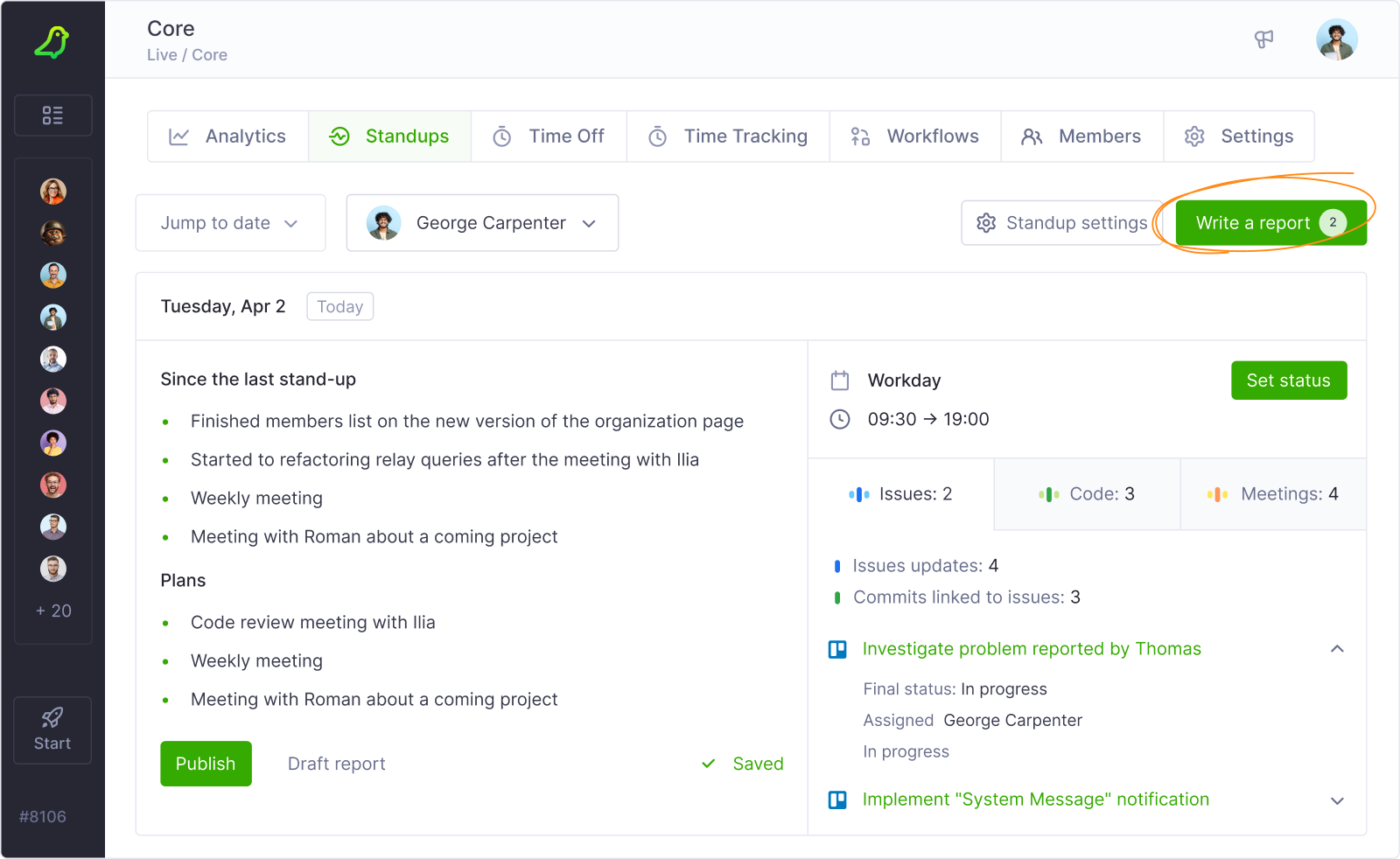
Standup updates are written directly on the Standups page. To help you recall what you've worked on, the right side of the screen shows your activity for the day — issues, code commits, and meetings — without switching between tools. Below the editor, Teamplify also highlights tasks currently in progress along with the time spent on them.
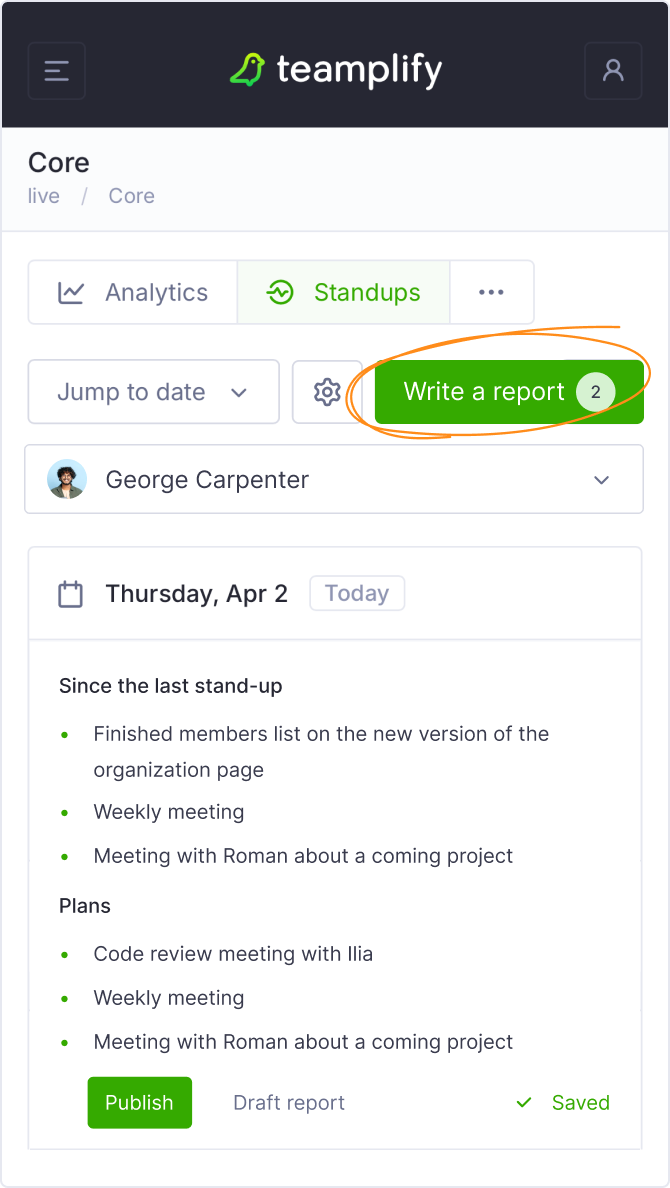
The text is saved automatically as you type. When ready, click Publish to share it with the team. Once published, you can edit or remove the report using the ··· menu. Editing does not send a new notification — if you edit a published report, the original message in chat is updated in place. If you delete the report, the message is removed from the chat as well. Email notifications are sent at the moment of publishing and cannot be recalled or changed afterward.
If you missed a standup, the Write a report button will display a counter in the top-right corner. Click it to see which days are missing and submit retroactively. Teamplify only requests reports for the last 3 days — after that, it's unlikely you'll remember enough to write a useful update.
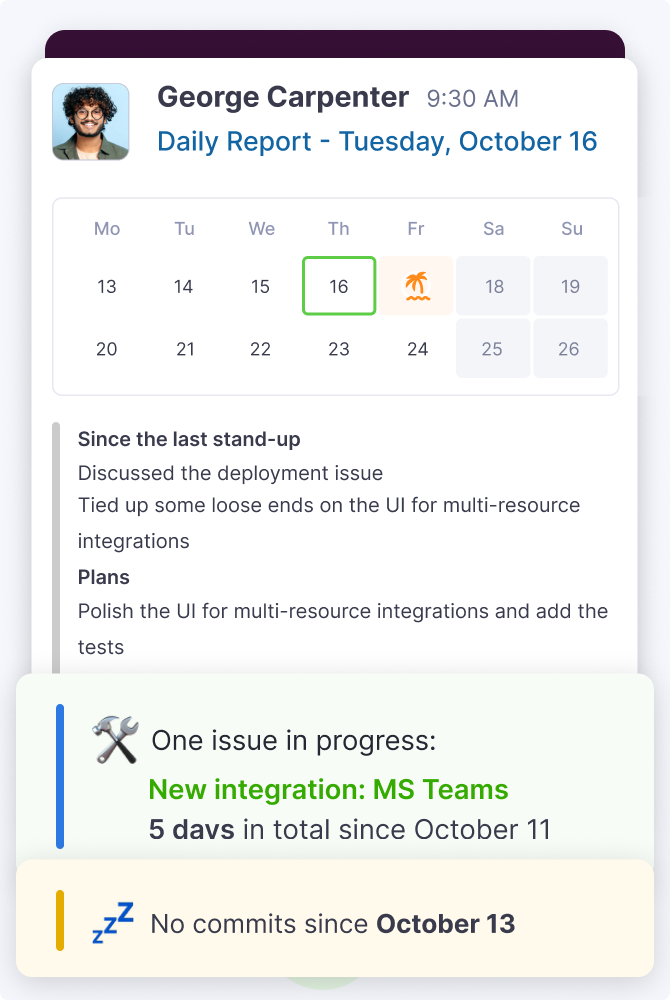
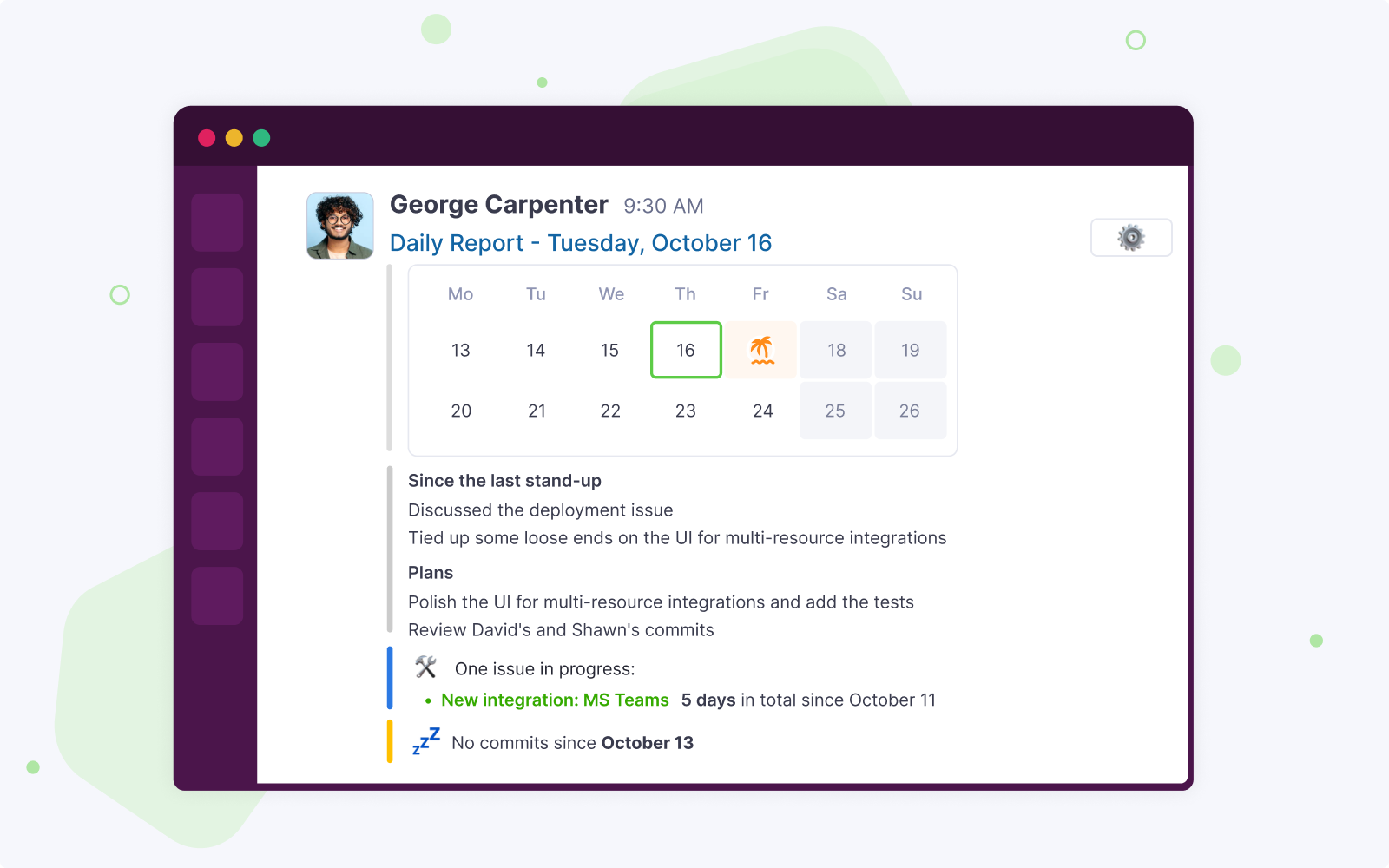
After clicking Publish, the report is automatically delivered to all configured channels and email recipients — no extra steps needed. Reports are formatted natively for Slack, Microsoft Teams and Mattermost, so they look like regular messages rather than plain text.
Each update includes not just what the member wrote, but also activity context — tasks in progress with time spent, and workflow notifications. If the member has upcoming time off, holidays, or a birthday in the next two weeks, a small calendar is included so the team always knows who will be available.
To adjust delivery settings, click the ⚙️ icon in the message — it opens the standup settings.