Multiple workspaces in one subscription
On the Business plan, one workspace can cover any number of other workspaces with its subscription. Connected workspaces get the plan of the paying workspace, and a user who belongs to several of these workspaces is billed once.
This page is about billing. Users can belong to several workspaces on any plan; to learn how to create and switch workspaces, see Belonging to several workspaces.
Requirements
- The paying workspace is on the Business plan. A canceled subscription works too, until its billing period ends.
- Workspaces are always connected from the paying workspace. To connect an existing workspace, you need to be an administrator of both workspaces. To create a new workspace in the subscription, you need to be an administrator of the paying workspace.
- A workspace can be in only one subscription. A workspace covered by another subscription can't be connected. A workspace whose subscription covers other workspaces can't join another subscription. A workspace scheduled for deletion can't be connected and can't add workspaces.
- Workspaces billed in a different currency from the paying workspace can't be connected. A different billing period doesn't matter. For workspaces with on-premises installations, see On-premises installations.
- A workspace with an unpaid invoice can't be connected until the invoice is paid.
Connecting a workspace
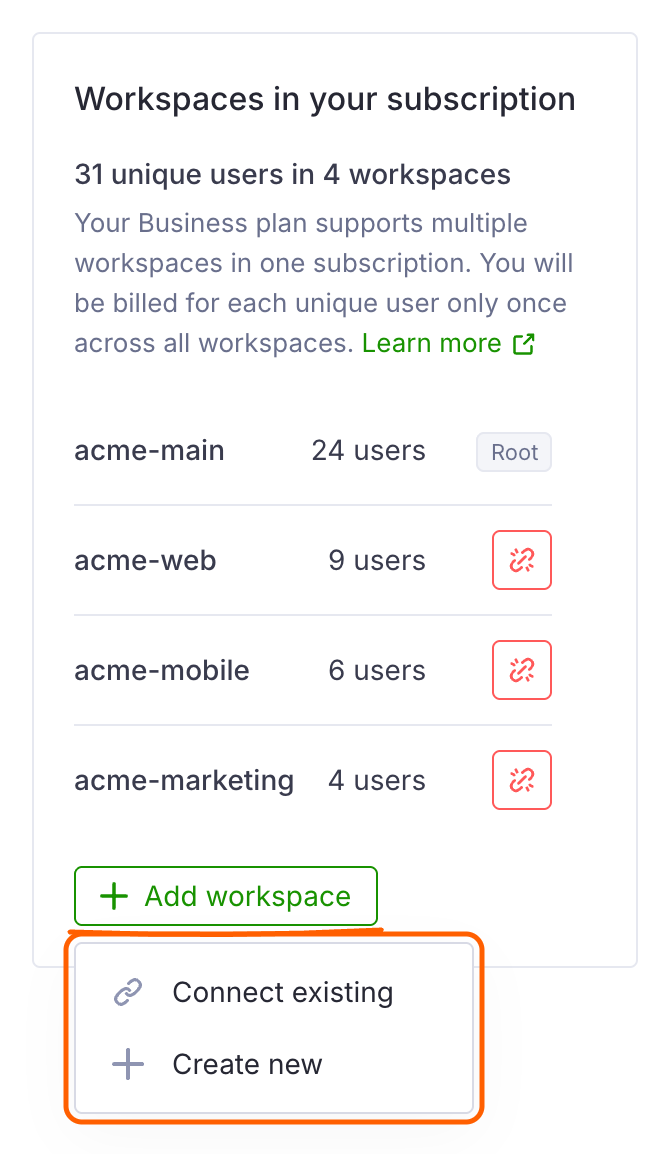
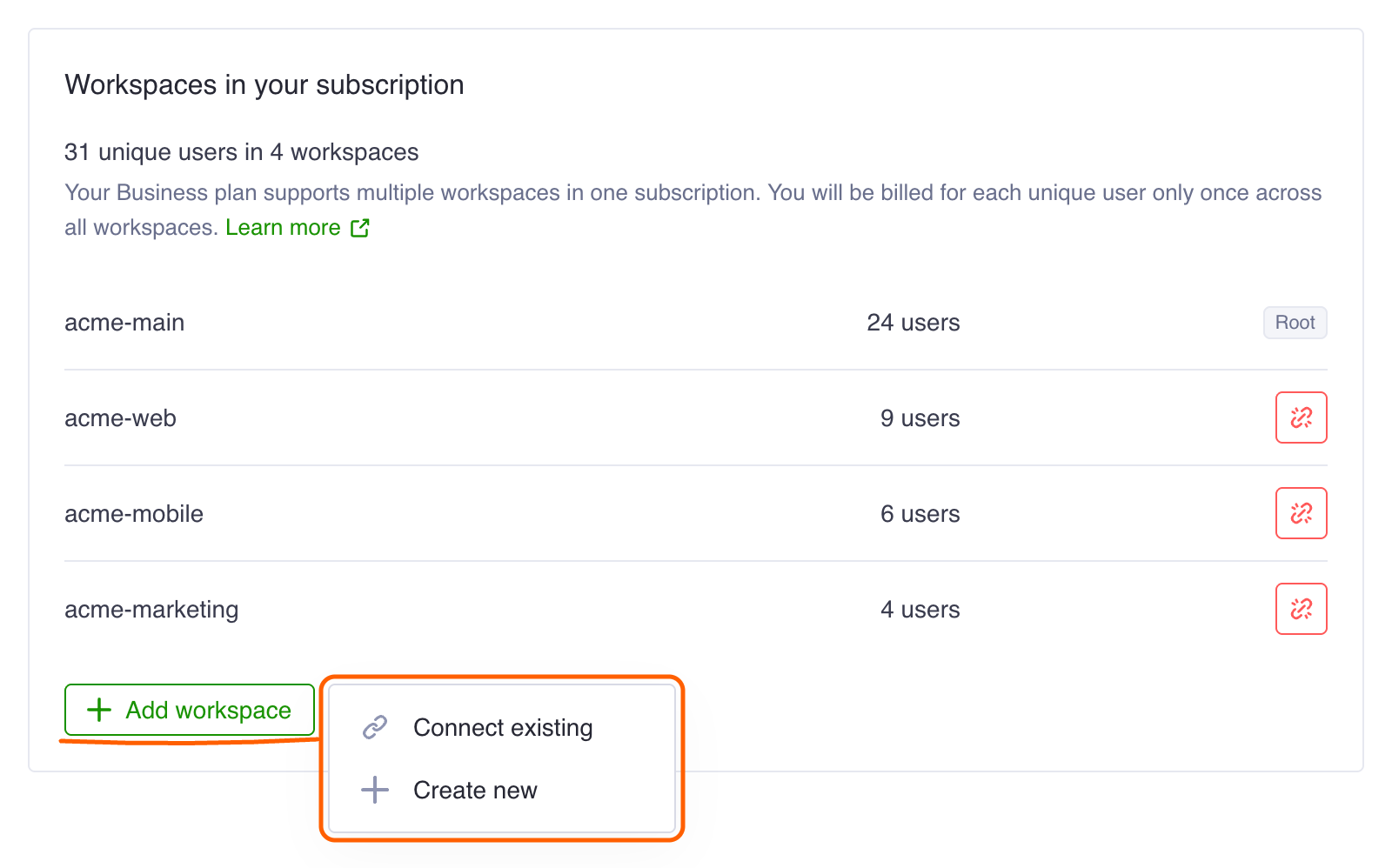
Administrators of the paying workspace manage its workspaces in the Workspaces in your subscription section of Settings → Billing. Click Add workspace at the bottom of the list. Choose Connect existing to connect a workspace where you're an administrator. Choose Create new to create one.
You can also add a new workspace to the subscription when creating a workspace from the main menu: choose Add to your current subscription under Billing.
What happens when a workspace is connected
- A user who belongs to several workspaces of the subscription takes one seat, as long as they are active in any of them. A user is one Teamplify account, so a person with two separate accounts takes two seats. Invoices are not split by workspace.
- Adding and removing members in any of the workspaces changes the bill of the paying workspace as described in Billing. Connecting or disconnecting a workspace changes the bill the same way: users new to the subscription add seats, and users who leave it release theirs.
- If the connected workspace had a subscription of its own, that subscription is canceled right away, and its unused time moves to the paying workspace as Teamplify Credits. Other credits don't move.
- A connected workspace can't change its plan: invoices and plan changes are managed by the administrators of the paying workspace.
Disconnecting a workspace
Administrators of the paying workspace click the disconnect icon next to the workspace in Workspaces in your subscription. Administrators of the connected workspace click Switch to your own billing on its plan card in Settings → Billing. A disconnected workspace:
- keeps its members, teams and data;
- gets a 3-day Business trial to choose a plan of its own;
- moves to the Free plan if no plan is chosen before the trial ends.
A workspace whose own trial lasts longer keeps it.
If the disconnected workspace has an on-premises installation, the installation keeps working during the trial, then on its own 30-day trial if it hasn't used one. To keep the installation working after that, subscribe the workspace to a plan that includes on-premises.
Deleting a connected workspace disconnects it. Users of the deleted workspace who aren't in other workspaces of the subscription release their seats.
To change the paying workspace from A to B:
- In the billing settings of A, disconnect all connected workspaces, including B.
- In the billing settings of B, choose Business. If any of the workspaces has an on-premises installation, choose Business with yearly billing.
- In the billing settings of B, connect the other workspaces, including A.
Connecting A cancels A's subscription and moves its unused time to B as Teamplify Credits.
When the paying workspace leaves Business
All connected workspaces are disconnected automatically when the paying workspace:
- cancels its subscription (at the end of the billing period);
- switches to a plan that doesn't support multiple workspaces, such as Team (once the new plan starts);
- reaches the end of its trial without choosing Business;
- stops paying;
- is deleted.
Switching Business between monthly and yearly billing keeps the connected workspaces connected.
To keep all workspaces connected after canceling, click Renew subscription before the billing period ends. Once the workspaces are disconnected, subscribing again doesn't bring them back: connect each of them again.
On-premises installations
- A workspace with an on-premises installation can be connected only to a subscription that includes on-premises: the Business plan with yearly billing. See On-premises installations for how installation users are billed. A workspace counts as having an installation once a product key has been generated for it.
- If the paying workspace switches to monthly billing, the connected workspaces stay connected. Every installation in the subscription, including the paying workspace's, stops working once its license expires. If the paying workspace switches to a plan without multiple workspaces, such as Team, the connected workspaces are also disconnected.
- Workspaces hosted by an on-premises installation are covered by its license and don't need to be connected.
