Time Off Policies
Time Off policies in Teamplify let you manage approvals and track balances for vacations, sick leave, and other availability statuses. This premium feature is available on paid plans.
Approval flow
You can set policies to require approval for certain availability statuses. When approval is required, new time-off requests remain in a Pending state until a team supervisor or organization admin reviews them. On Teamplify calendars, these requests appear with a dotted outline.
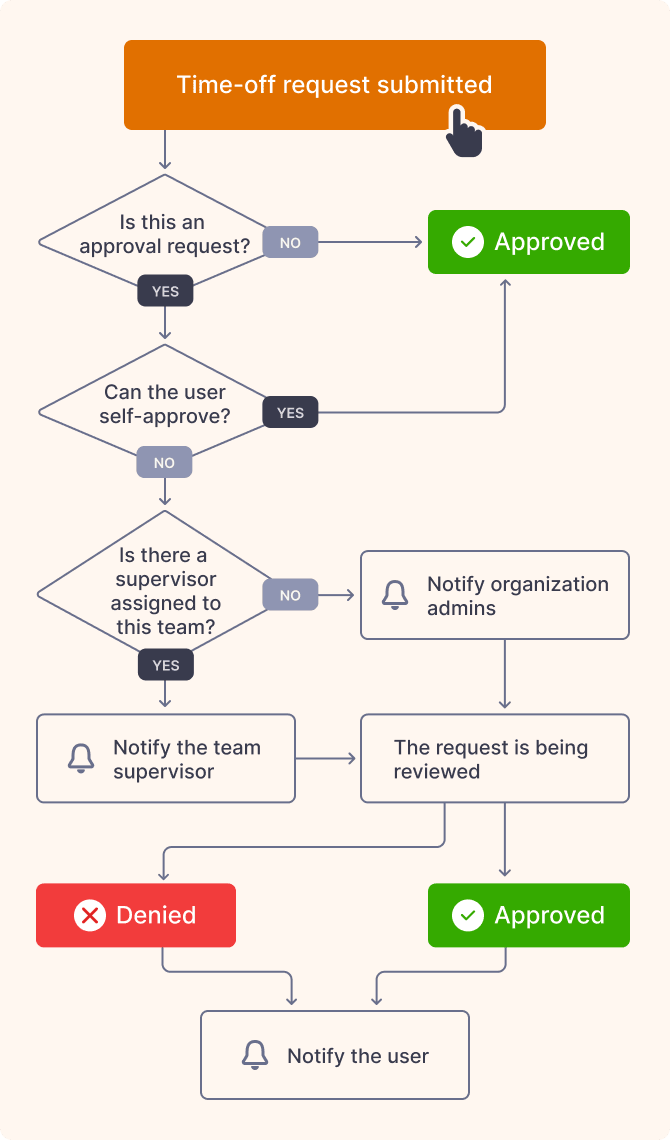
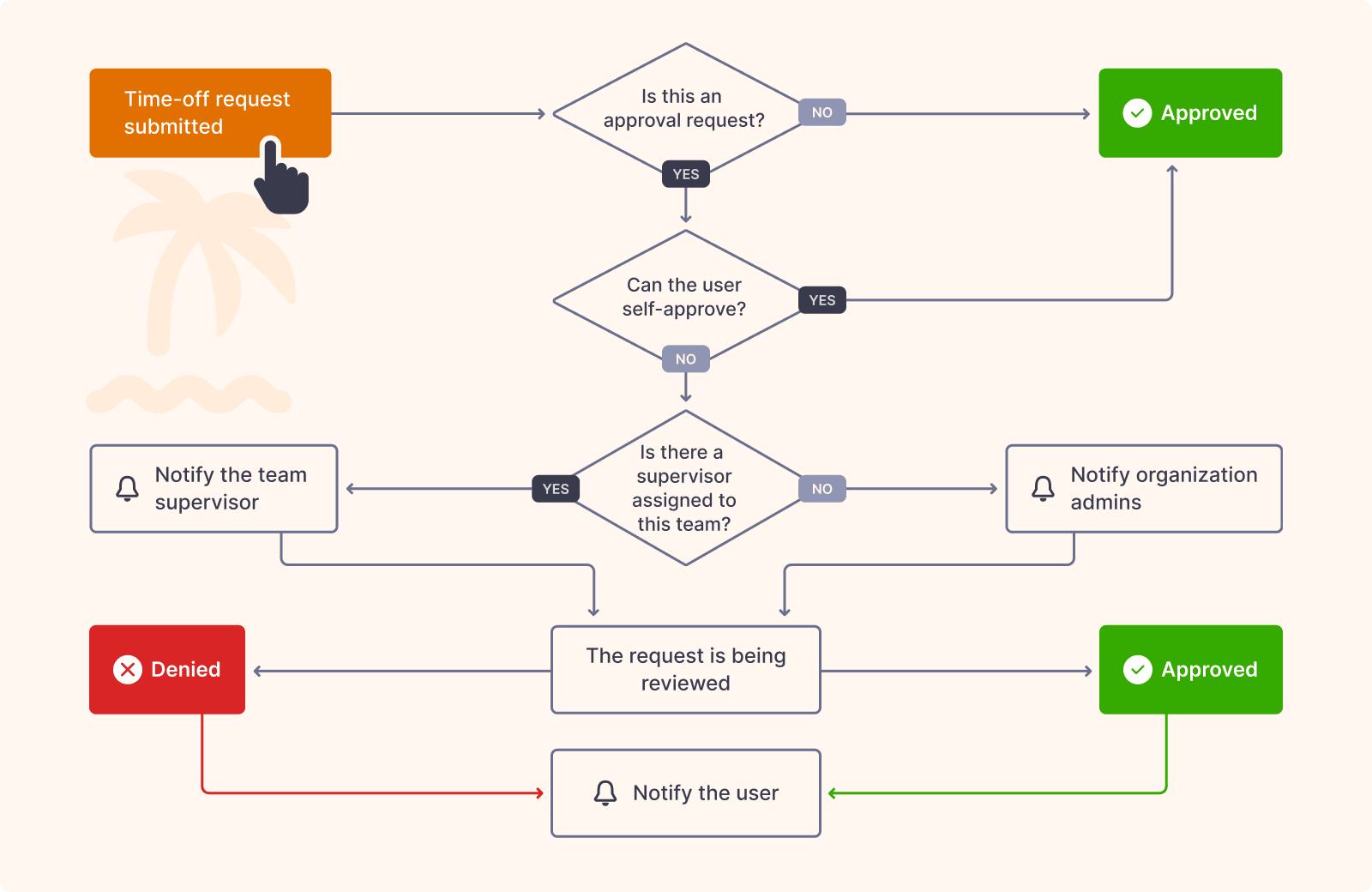
What happens when a new time-off request is submitted:
-
Check for auto-approval
- If the applicable policy does not require approval, the request is automatically approved.
- If the requester is a team supervisor or organization admin, they can approve their own request. In this case, the request bypasses the pending state and is automatically approved.
-
Notifying the relevant admins (if approval is required)
- If the user belongs to a team with an assigned team supervisor, the supervisor is notified.
- Alternatively, if the user is not part of a team, or no team supervisor is assigned, all organization admins are notified.
Notifications are sent via Slack if their account is connected to Teamplify; otherwise, they receive an email. In either case, the notification includes the dates, the user’s comment, and Approve and Deny buttons for taking action.
-
Approval or denial of the request
The request can be reviewed by the team supervisor or any organization admin. Even if they haven't received a notification, they can always find it in the Time off section in the Teamplify interface—either via the user’s profile, their team, or the organization as a whole. A 🔴 red dot on the Time off tab indicates that there are pending time-off requests there.
-
Notifying the user
Once a decision is made, Teamplify notifies the user whether their request was approved or denied. Notifications are sent via Slack if their account is connected; otherwise, they receive an email.
Allowance and current balance
In addition to approval requirements, policies can establish allowances for various availability statuses, such as Vacation, Sick Leave, and Remote Work. Each user has a specific balance that is updated automatically according to the policy rules. For example, a policy allowing 24 days of vacation per year with monthly accrual will automatically credit two days to the user's balance each month. When a user takes a vacation, their balance is reduced accordingly. The time-off request form displays the current balance and shows how it will change once the request is approved.
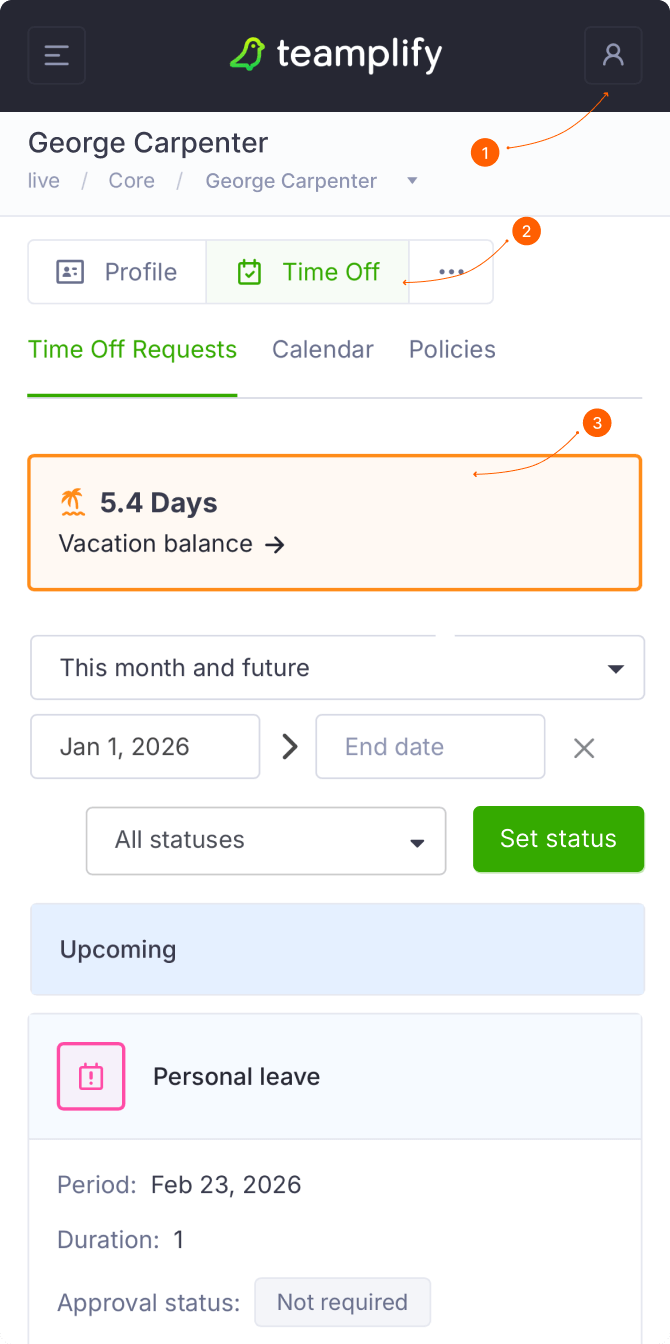
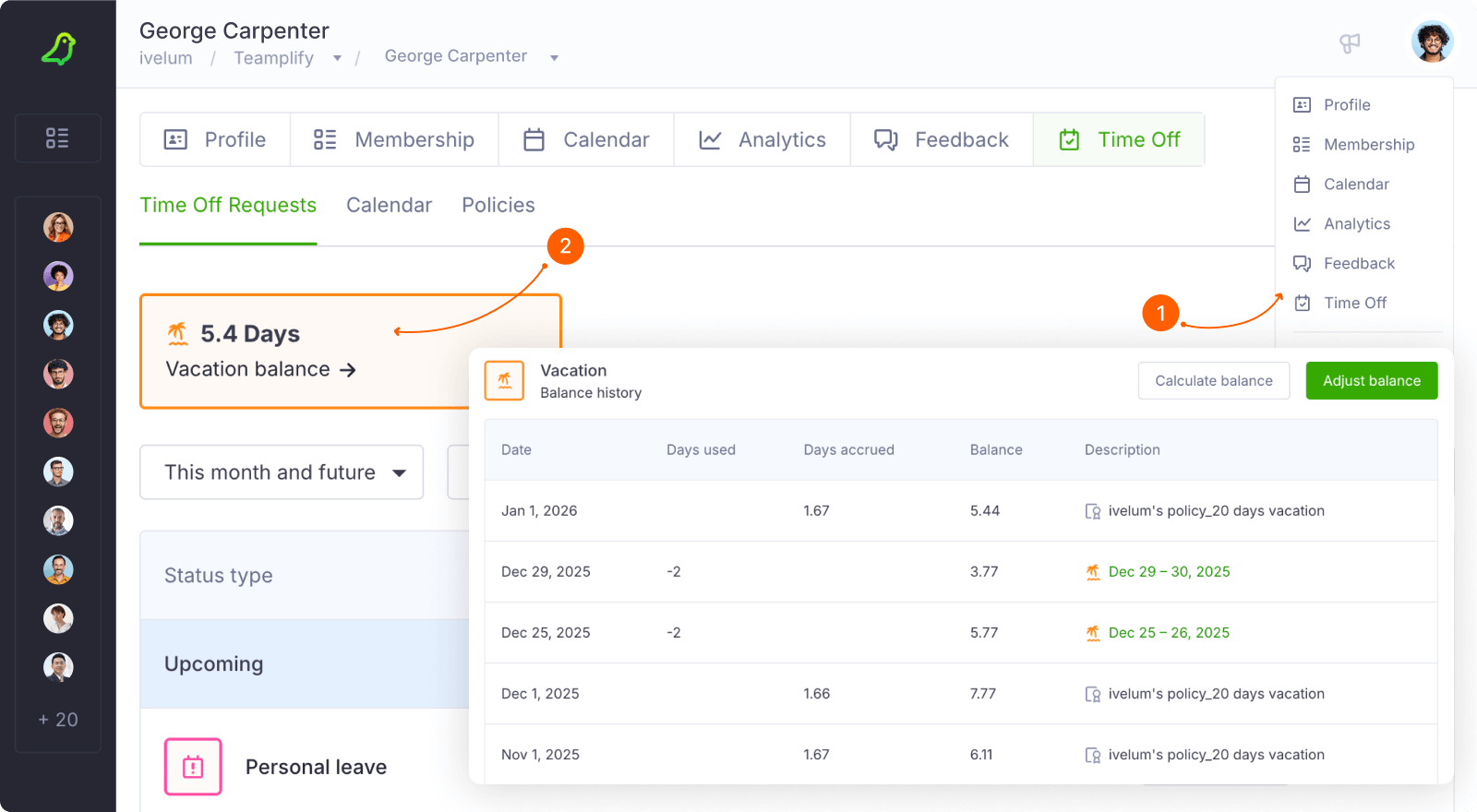
Users can also check their balance at any time in the Time Off section of their profile. Clicking on the balance reveals a complete history of all updates, including the reason for each change. Organization admins or team supervisors can use this page to manually adjust a user’s balance if necessary.
Create or update a policy
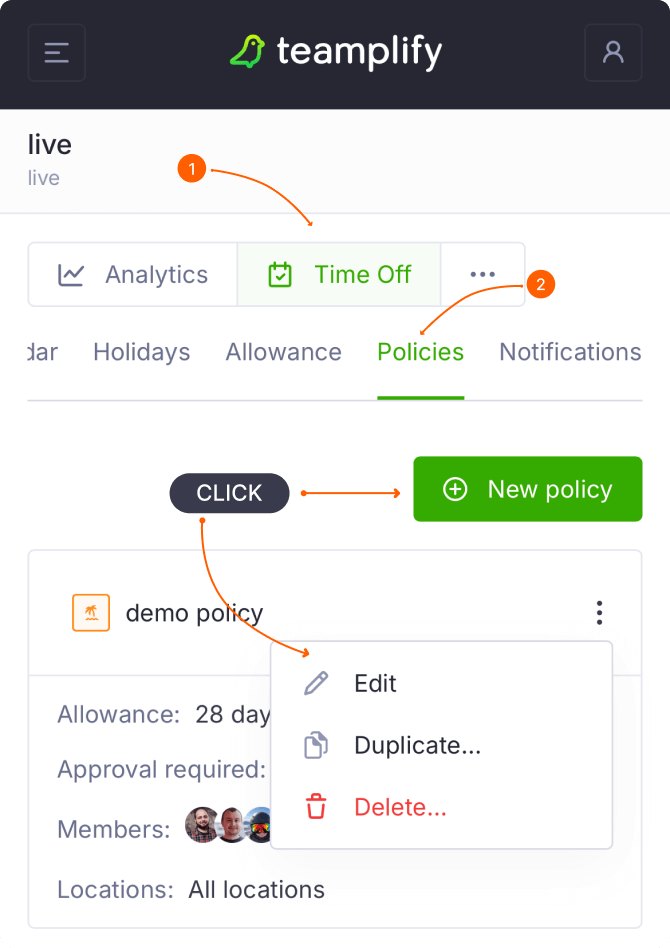
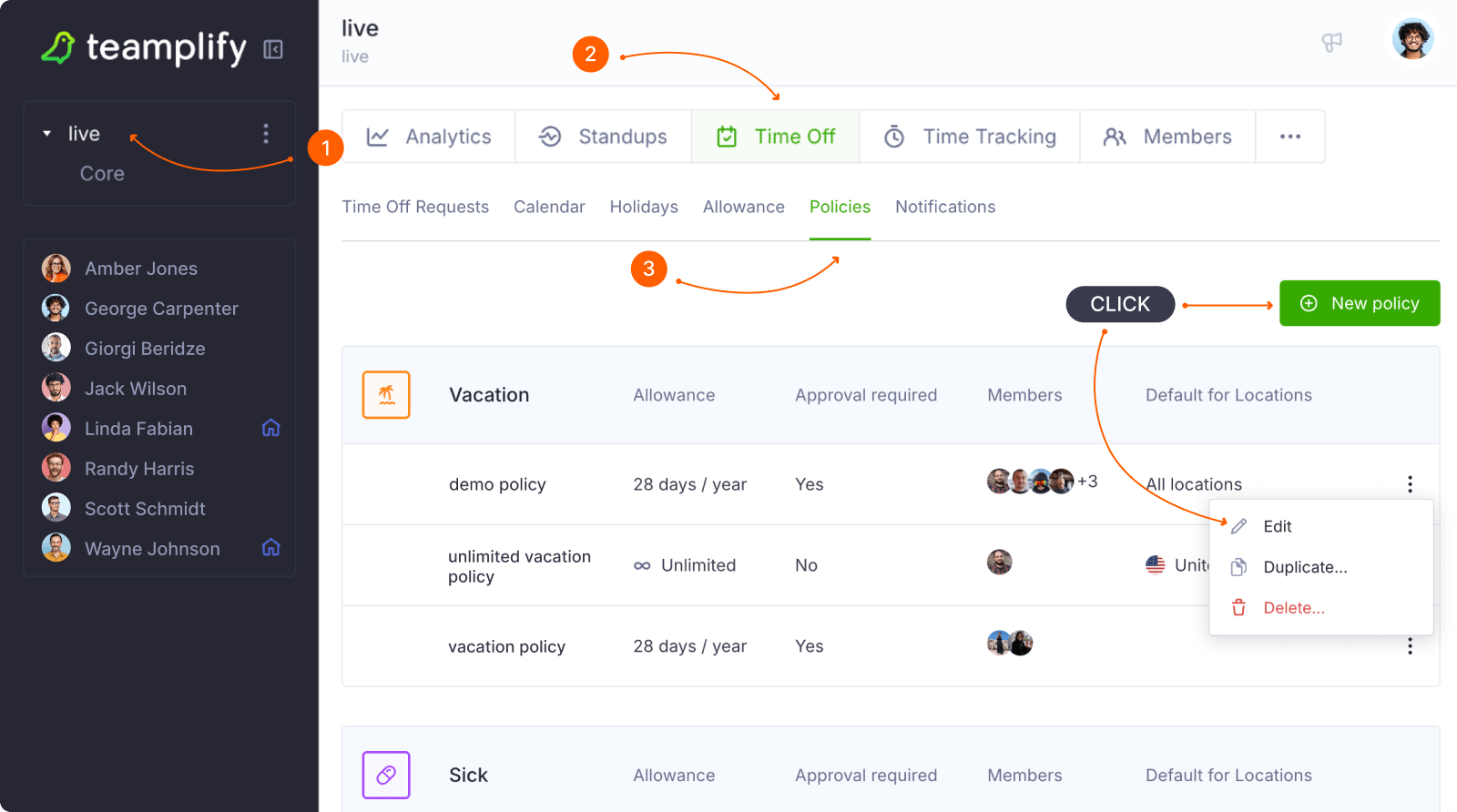
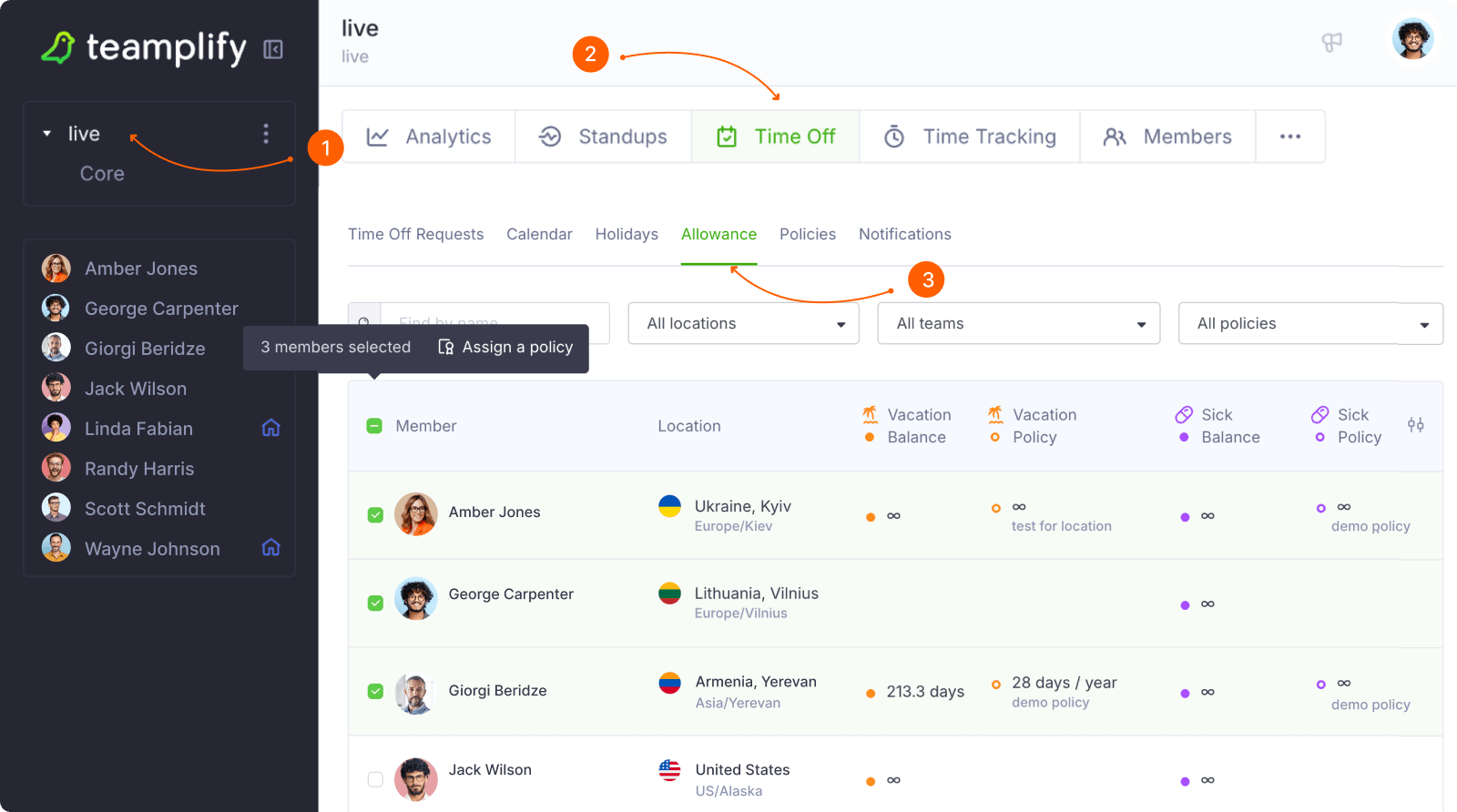
To access policies, click the workspace name in the main menu, open the Time off tab, and select Policies. This page lists all policies currently defined in your workspace. Please note that only users with the Organization admin role can make changes here.
When setting up a policy, the first step is to define its behavior: should it Allow or Prohibit users from requesting a specific availability status? By default, all availability statuses are allowed in Teamplify. If you need to restrict a specific status, create a policy that prohibits it.
If policy allows the selected status, you can further configure:
- Approval flow — enable approval by switching on Requires approval.
- Allowance — disable Unlimited allowance to set custom limits and accrual rules.
Finally, you can choose to automatically assign the policy to new workspace members—either to everyone or only to people joining from specific locations.
Assign a policy
For a policy to take effect, it must be assigned to specific members of the organization. You can do this in two ways:
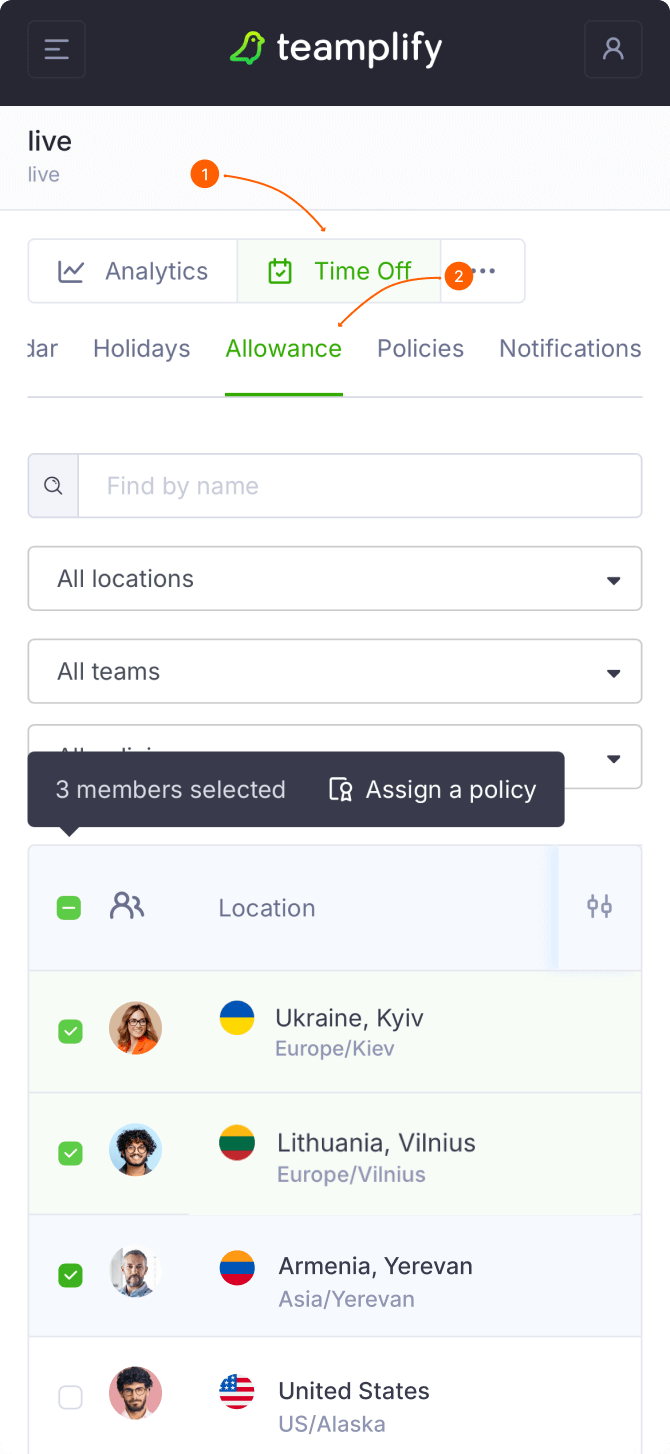
- Bulk assignment — Click the workspace name in the main menu, go to the Time off tab, and select Allowance. From there, you can search for users by name, location, team, or current policy. The view is configurable: click the icon in the top-right corner of the results table to choose which columns to display. Once you’ve selected the desired users, you can assign a policy to all of them at once.
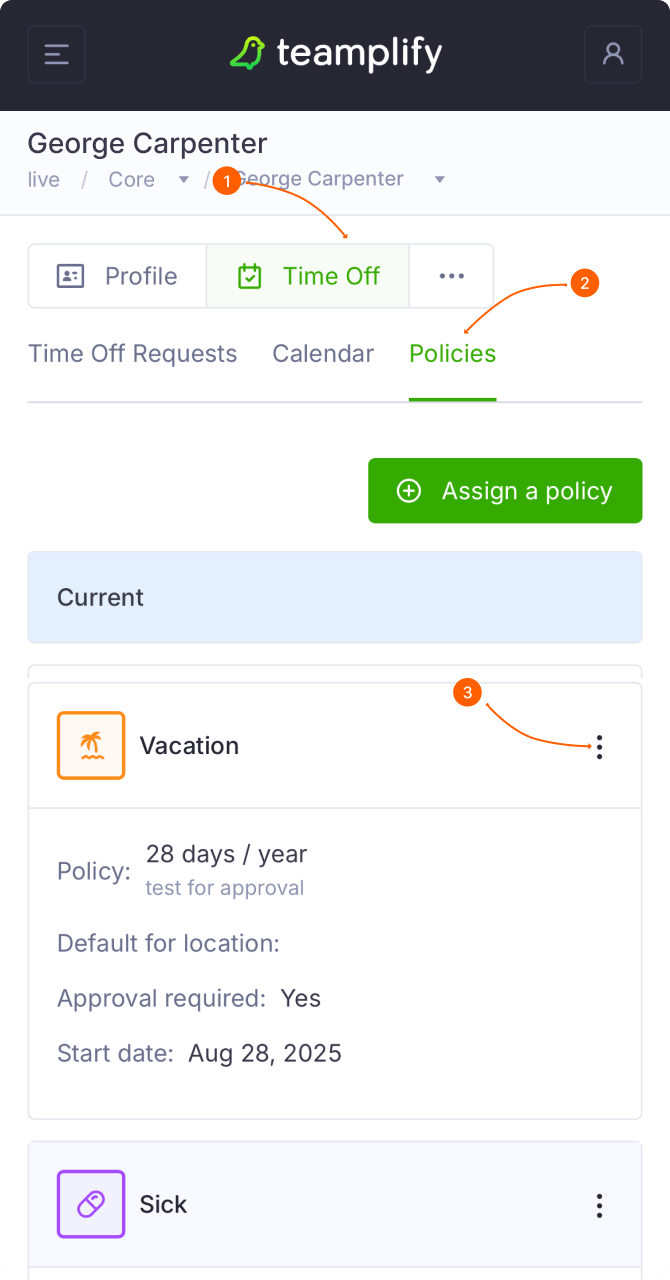
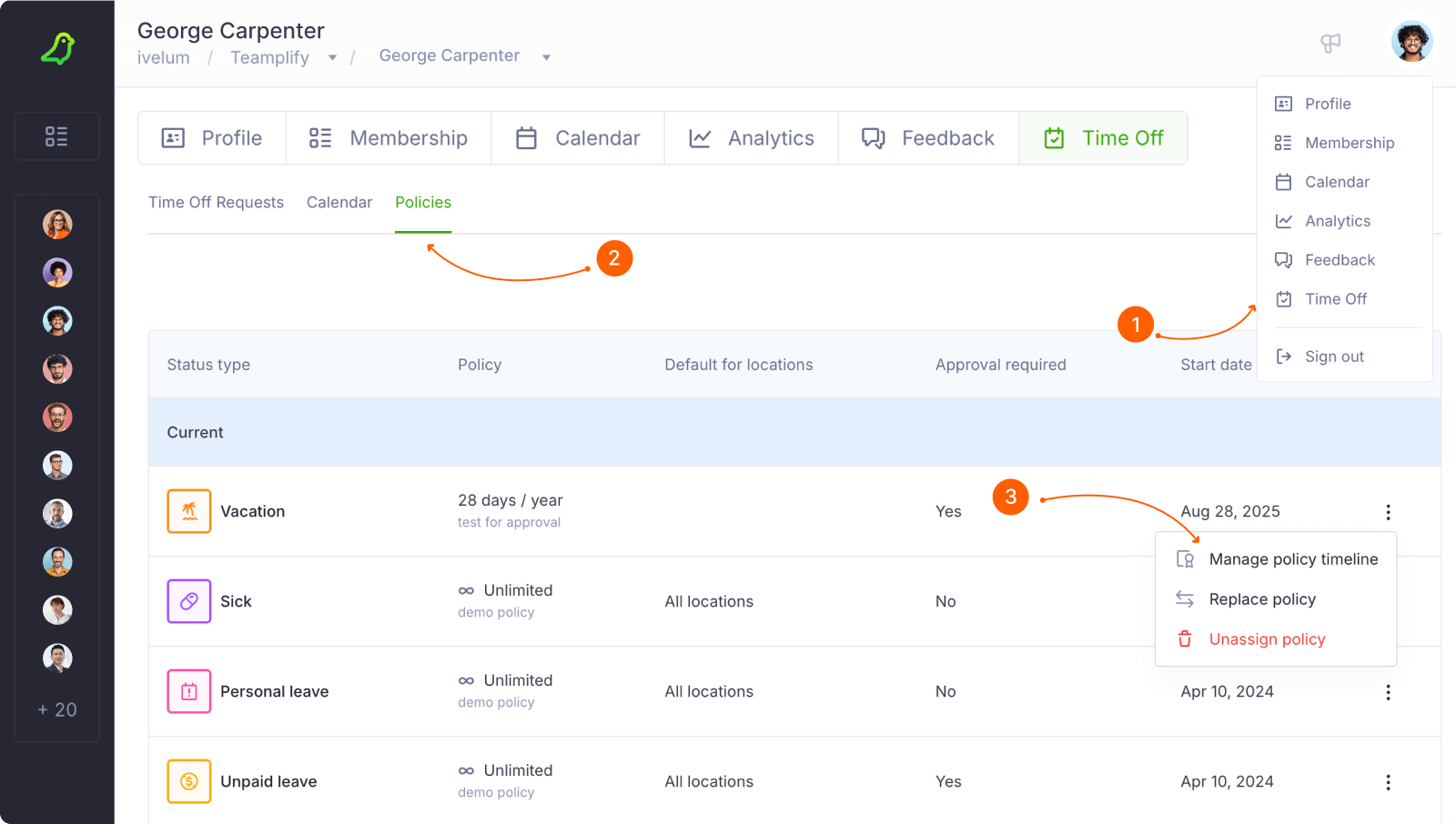
- Individual assignment — Open the user’s profile, navigate to Time off, and select Policies. Here, you can view and manage all policies assigned to that user.
Maintaining policy history
Time off policies can change over time, and Teamplify keeps a record of all policies ever assigned to users, along with the dates they took effect. To view a user’s policy history, go to their profile, open the Time off tab, and select Policies. This page shows the current policy for each availability status, including the dates they became effective. Click any line to see the full history of policies for that status. Organization admins or team supervisors can also manage policy history from this page if needed.
Please note that policy history is taken into account when calculating user balances. For example:
A user was assigned a policy granting 15 vacation days per year for six months. The user was then switched to a new policy granting 20 vacation days per year for the following six months.
If the user hasn’t taken any vacation, their total balance after one year would be 17.5 days — 7.5 days accrued under the first policy and 10 days under the second.
If you need to change a policy that is already assigned to users, we recommend the following:
- Update the existing policy only if it contains an error. Changing the allowance limits will automatically recalculate all user balances according to the new rules. Proceed with this option only if this is your intention.
- Create a new policy if the old policy is correct but should no longer be applied. In this case, current user balances remain unchanged, and the new allowance limits take effect only from the date the new policy is assigned. You can use bulk assignment to apply the new policy to all relevant users.