Locations
Teamplify fully supports remote and hybrid teams. You can have teammates from anywhere in the world, whether they are working from home or in a company office.
Adding an office
Click the workspace name in the main menu, then go to Settings → Locations. On this page, you’ll see an overview of all remote and office locations in your workspace. To add an office, click Add an office and specify its country and name.
Please note that although this page also lists remote locations, you don’t need to add them manually. Remote locations are always available for selection in user profiles and will appear on this page automatically once someone chooses them.
Location in user profiles
In user profiles, you can specify each user’s Location, indicating whether they work remotely or from an office in their selected country.
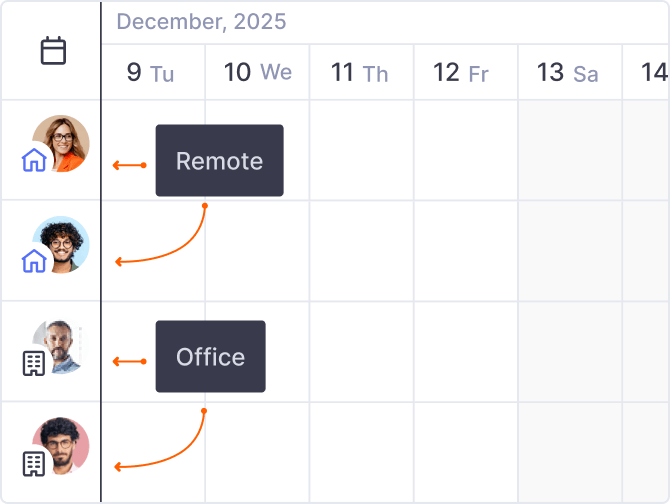
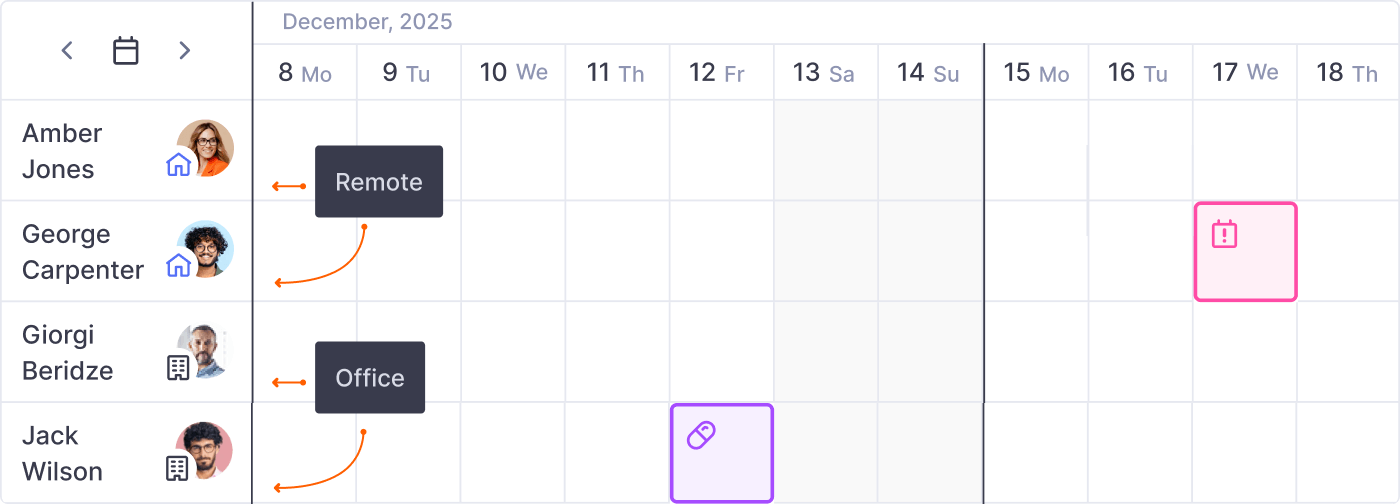
Location is also available as a filter in the organization and team member lists, allowing you to quickly find teammates in a specific location. In addition, locations are displayed on Teamplify calendars with small icons that indicate whether people are working remotely or from an office:
Time off policies for specific locations
When creating or editing a time off policy, you can choose to apply it by default to new users in a specific location.
You can also bulk-assign a policy to existing users in a given location. To do this, click the workspace name in the main menu, go to the Time off tab, and select Allowance. There, you can filter users by location, select them, and assign a policy in bulk.
