Access roles
There are five access roles in Teamplify:
- Organization Admins have full, unrestricted access to the workspace. They can view and modify everything that is visible and editable within the system.
- Organization Members, like Organization Admins, have visibility into everything in the workspace, but mostly in the read-only mode. They can only change information related to themselves, such as update their profile, submit time-off requests, standup reports, and feedback.
-
Team Supervisor is a special access role that comes with team
selection and grants additional permissions for the selected teams,
such as:
- Adding or removing team members.
- Managing team member profiles.
- Approving or denying time-off requests.
- Adjusting team settings, including Standups, Team Workflows, Notifications, and other configuration options.
Aside from these privileges, Team Supervisors have access rights similar to Organization Members. They can view other teams, users, and workspace settings, but only in read-only mode.
- Team Members can view only the teams they belong to and the profiles of their teammates. They can only change information related to themselves, such as update their profile, submit time-off requests, standup reports, and feedback. All other data is read-only. If a Team Member isn’t assigned to any team, they can view only their own profile.
- No access — users with this role cannot access the interface, but their profiles exist in Teamplify and can be used for data analysis.
How to change an access role
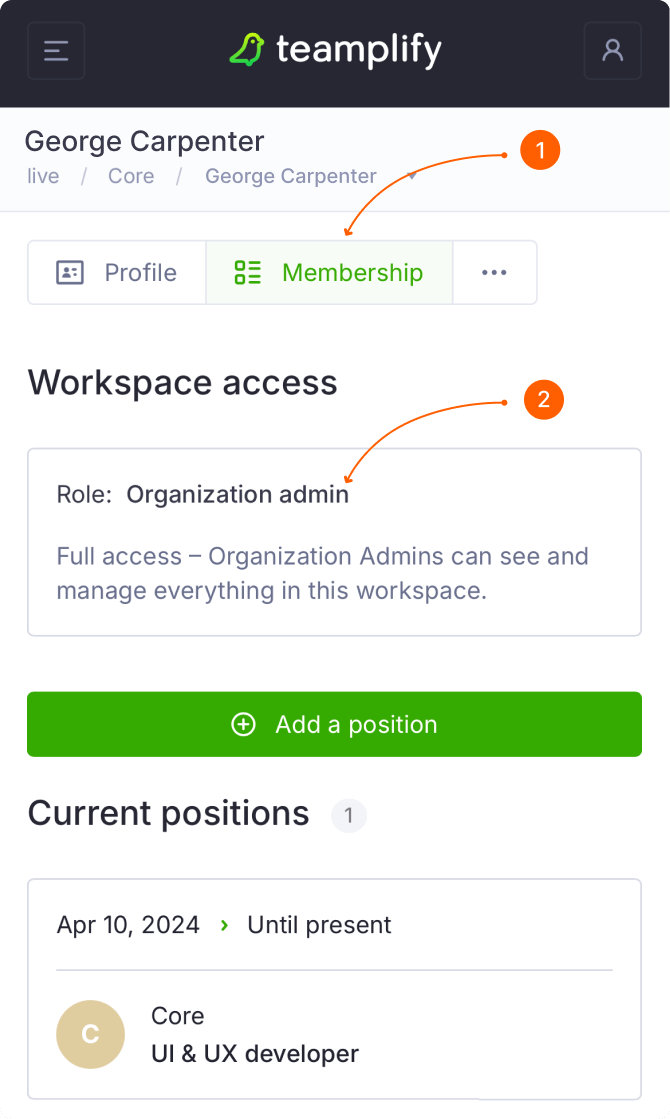
To view or change someone’s access role, open their profile, go to the Membership tab and find the Workspace access section: