Holidays
Built-in national holidays
Teamplify includes a built-in national holiday schedule covering nearly all countries worldwide, which is updated automatically and regularly—no action required on your part.
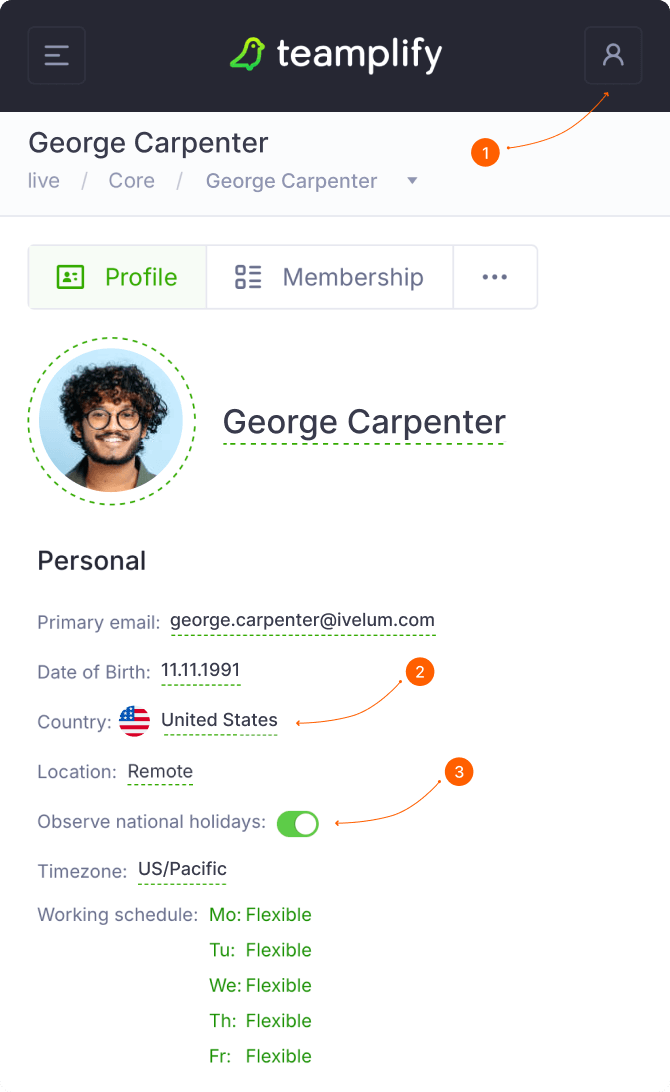
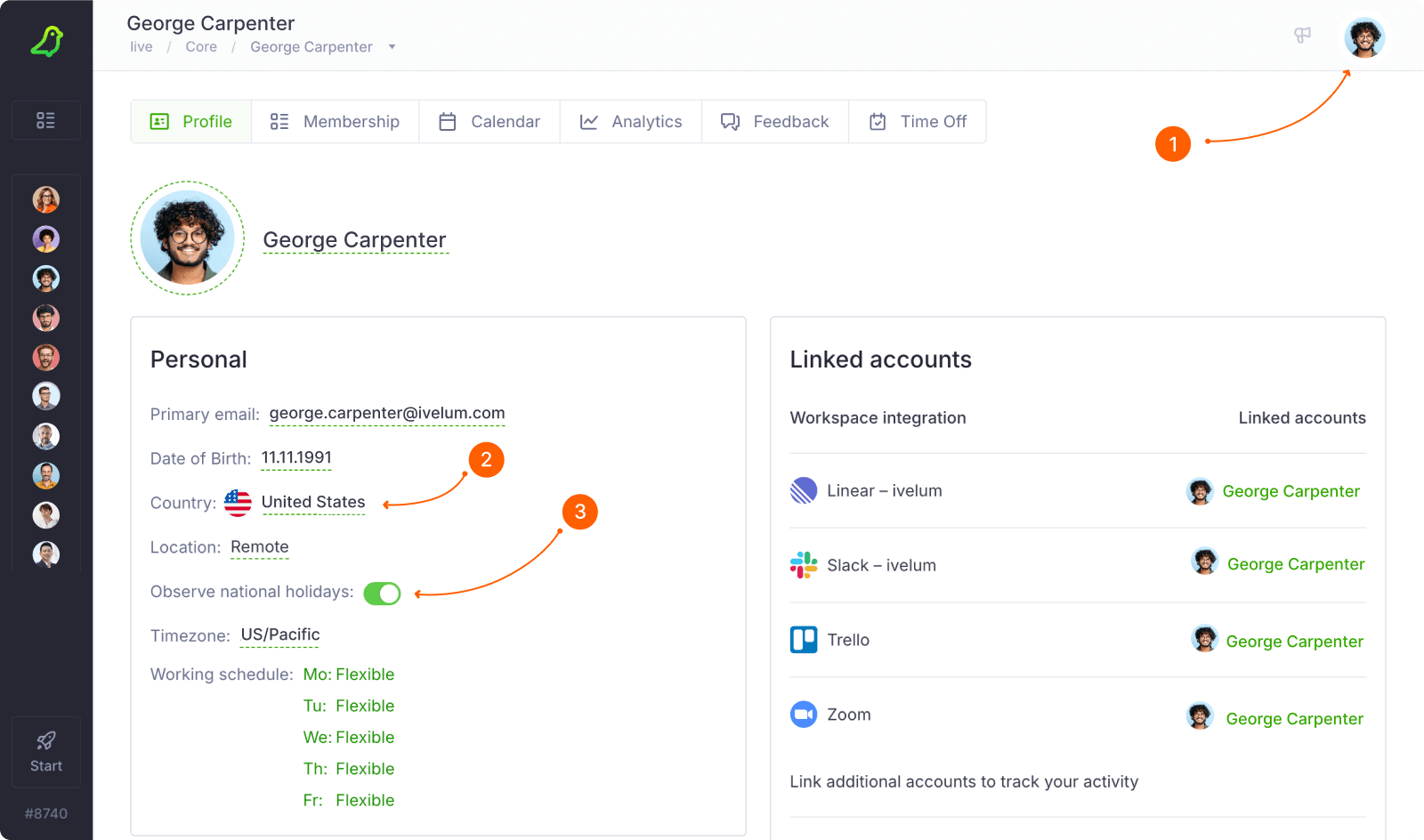
To ensure the correct holiday schedule applies to your team members, make sure each user has the appropriate country selected in their profile and verify that the Observe national holidays option is enabled.
Custom holidays
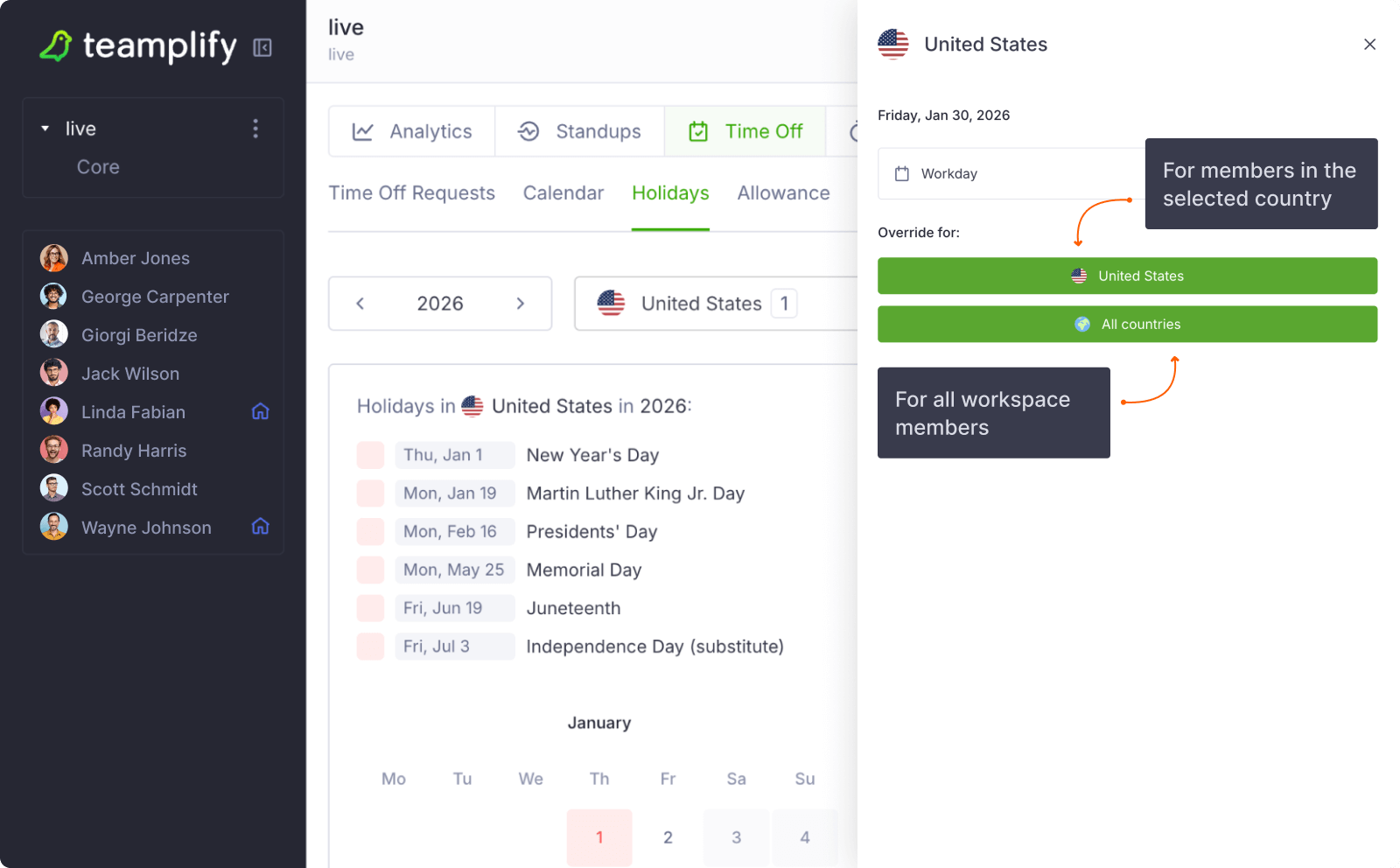
You can add custom holidays for your organization or override the default national holiday schedule, marking certain days as working days if needed. To do this, click your workspace name in the main menu, select Time Off, and then Holidays. Here, you can view the national holiday schedule for any country, starting with those that have the most members.
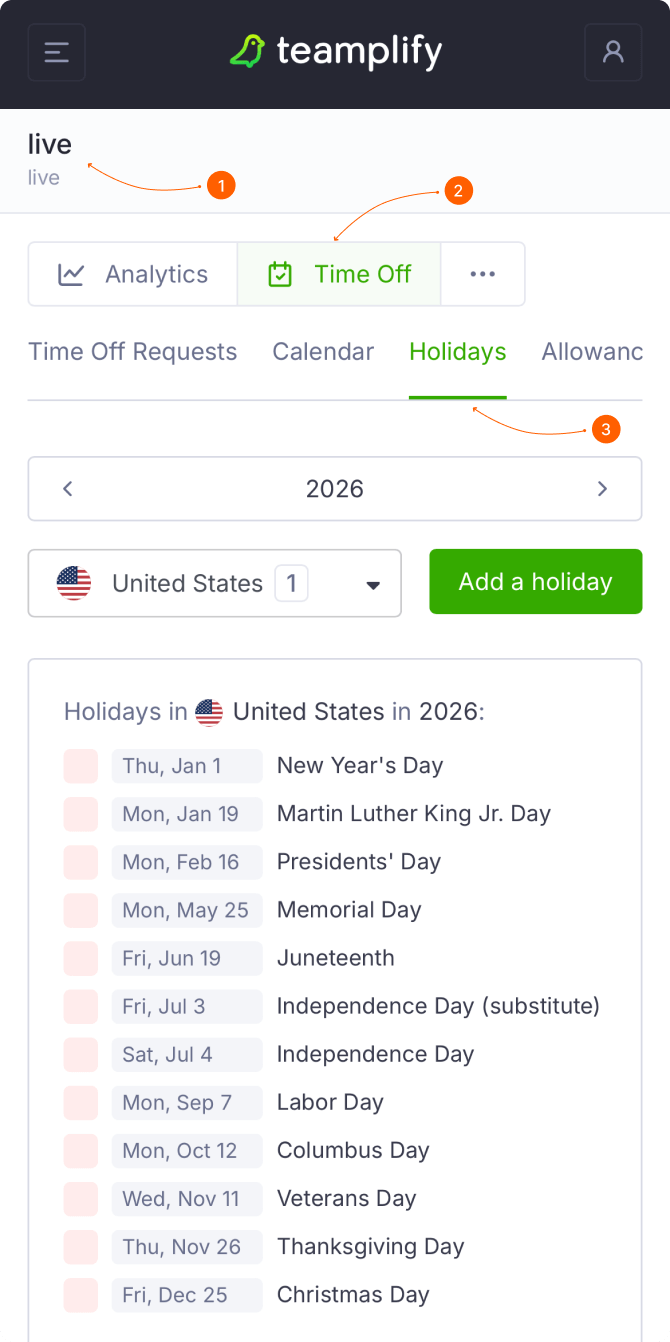
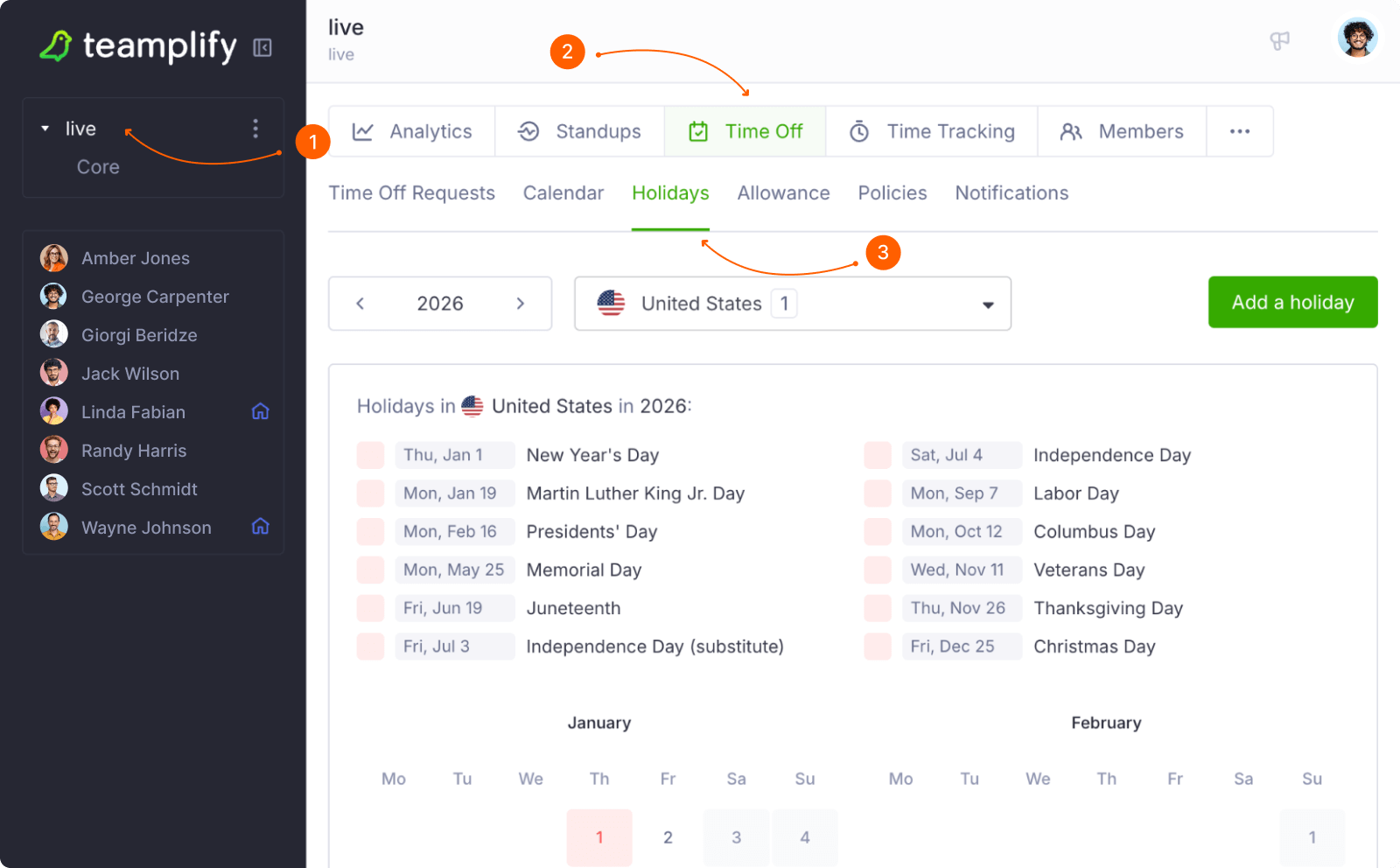
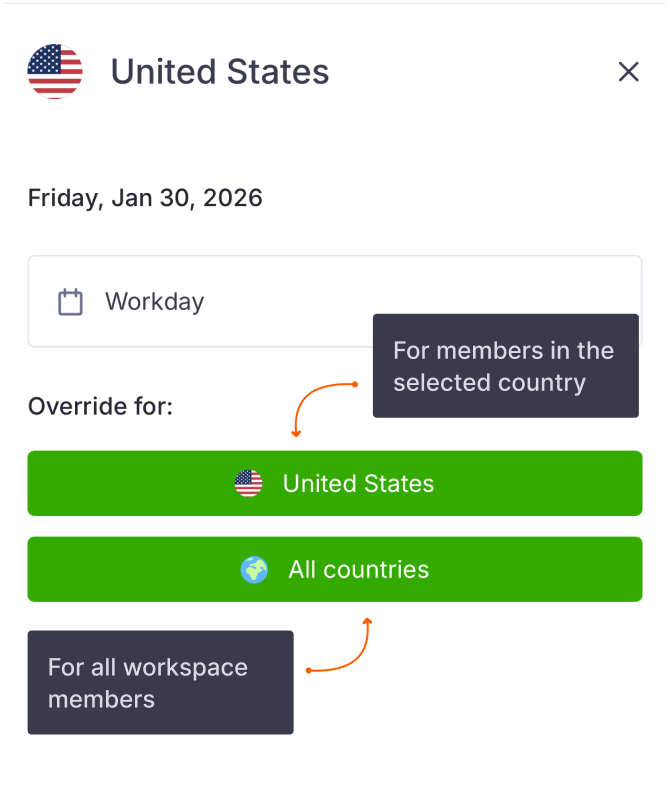
To add a custom holiday or working day, either click on the desired date or select Add a holiday and choose a date from the calendar. Then, decide whether the override should apply only to members in the selected country or to all workspace members regardless of location. Finally, choose the action—Force workday or Force non-working day—and provide a Description explaining the reason for the change.