Availability statuses
In Teamplify, you can manage your availability by setting vacations, sick leave, or customizing and rescheduling workdays. We recommend enabling time-off notifications to keep your teammates informed at all times.
Calendars
Teamplify calendars display your teammates’ availability, national holidays, and birthdays using colored icons:
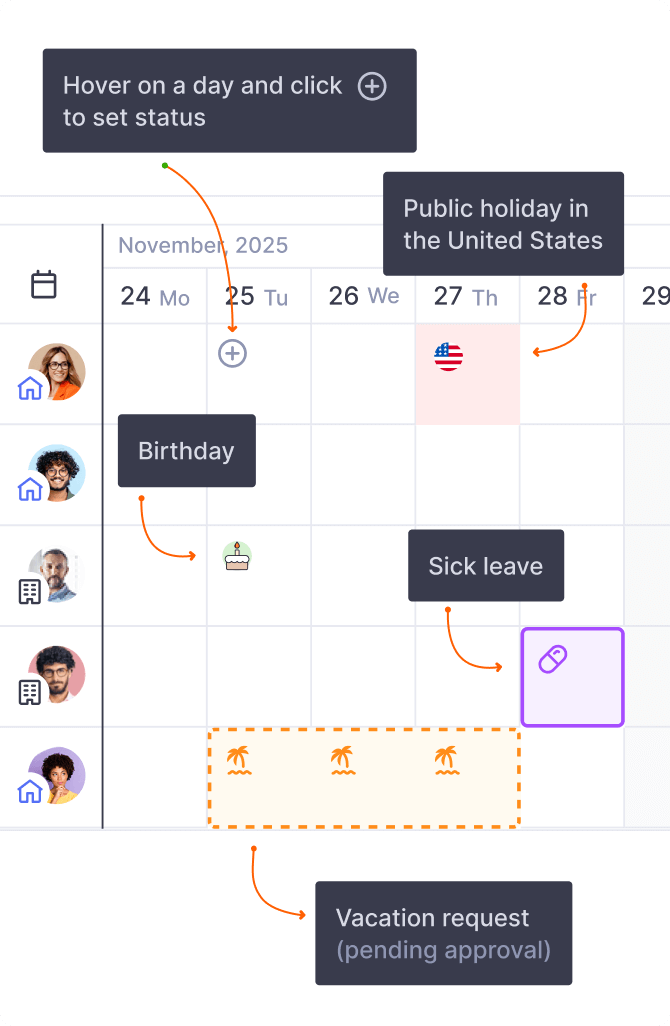
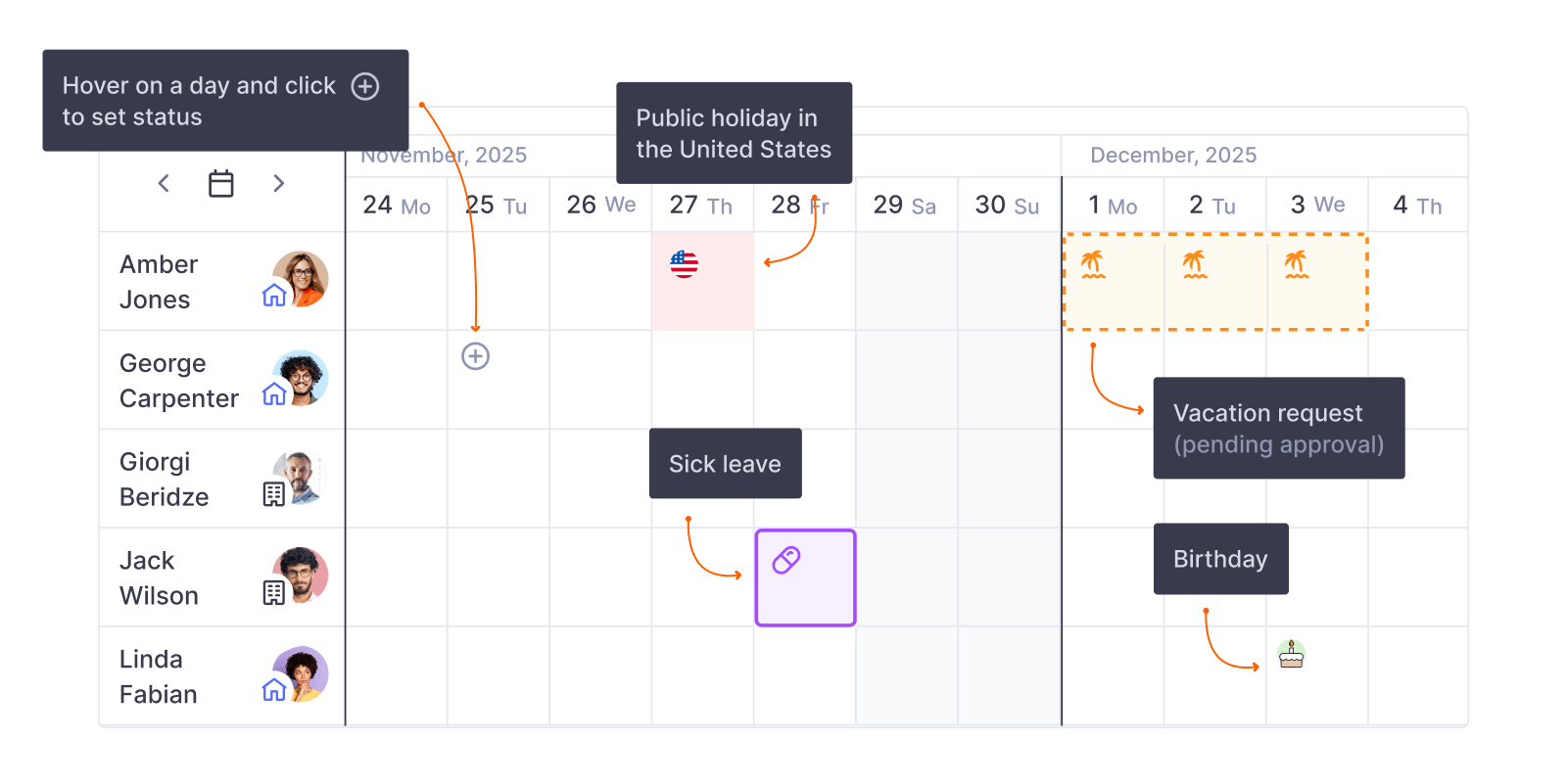
You can set your availability status by clicking the Set your status button or by hovering over a day on the calendar and selecting the ⊕ icon. Organization admins and team supervisors can also set availability statuses not only for themselves but for other team members as well.
Requests pending approval
By default, all availability statuses in Teamplify are enabled and can be requested by any user without requiring approval. You can change this by enabling an approval flow. Time off requests that are pending approval appear with a dotted line on the calendar. For example:
Vacation request, pending approval
Vacation, approved
Absence
There are four types of absence leave in Teamplify:
Vacation — All work absences that use vacation days compensated by the employer. If your absence is unpaid, please use Unpaid leave instead.
Sick — Time off used to care for yourself or others. Compensation rules vary by country and employer.
Personal leave — Paid time off for reasons other than vacation or sickness. If the absence is unpaid, please choose Unpaid leave instead.
Unpaid leave — Any type of leave that is not compensated by the employer.
Custom workdays
In addition to recording absences, Teamplify allows you to set custom workdays to indicate when your availability differs from your usual schedule. These customizations can include:
-
Location changes:
Remote work – Working outside the office, for example, from home.
Office – Working from a company office. If your company has multiple offices, you can specify which one you work at.
Business trip – Traveling for official business, such as visiting a client or attending a conference.
-
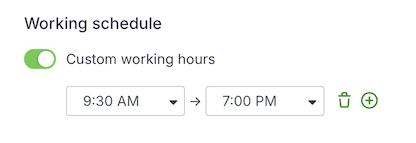
Changes in Working hours:
If your schedule differs from the default set in your profile, you can set custom working hours. You can also add a note explaining the reason for the change, e.g., “Dentist appointment.”
-
Special status:
On call – Available online or by phone to respond to emergencies.
Overtime – Working beyond your normal hours, or during weekends and holidays.

Reschedule workday
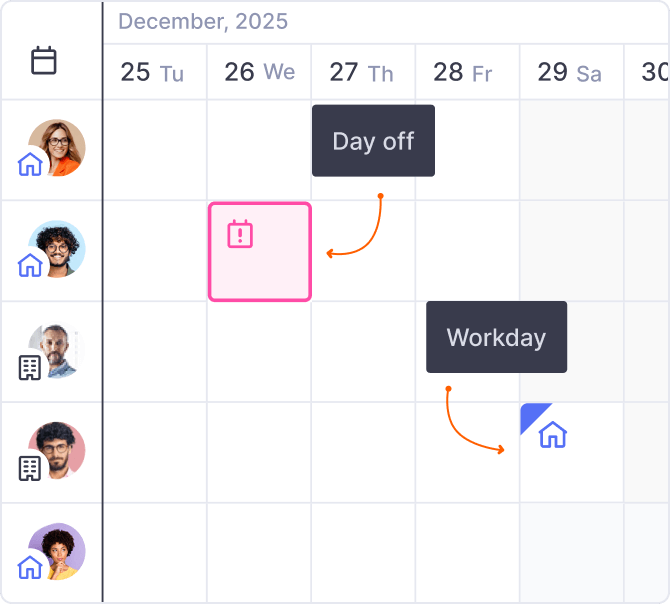
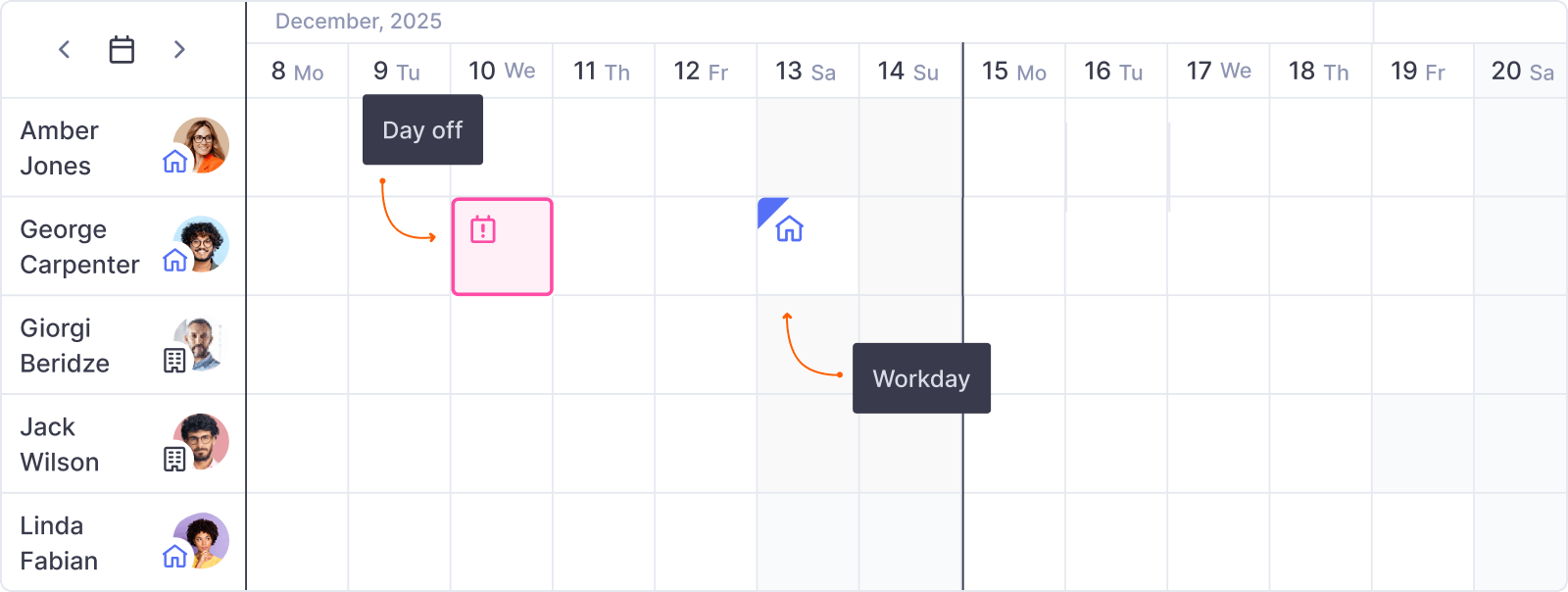
If you want to take time off on a regular workday and compensate by working on a weekend or holiday, choose Reschedule workday when setting your availability status. You’ll then be prompted to select two dates: the day you’ll be working and the day you’ll be unavailable.
These days will be shown on Teamplify calendars as the following: the day when you're absent will be marked as Personal leave, and the day you're working will be marked as Custom workday:
Restrict specific availability statuses
By default, all availability statuses in Teamplify are active and accessible to every member of the organization. To limit a specific status, create a policy that prevents users from requesting it.
